
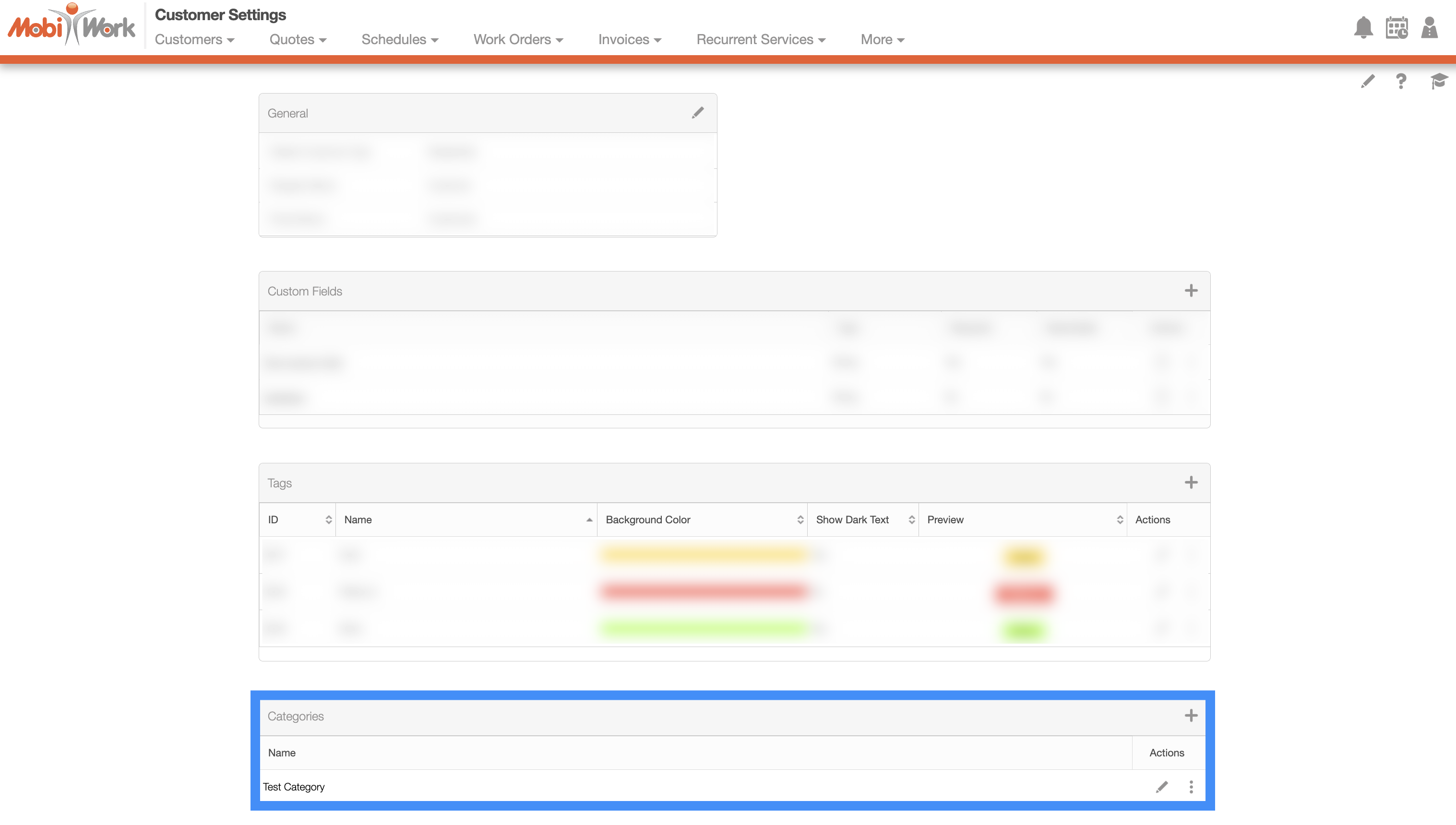
You can access the "Categories" section from the selected entity's Settings page; once you are on the Settings page, scroll until you locate the "Categories" section. The example below shows the "Categories" section from the Customer Settings page:
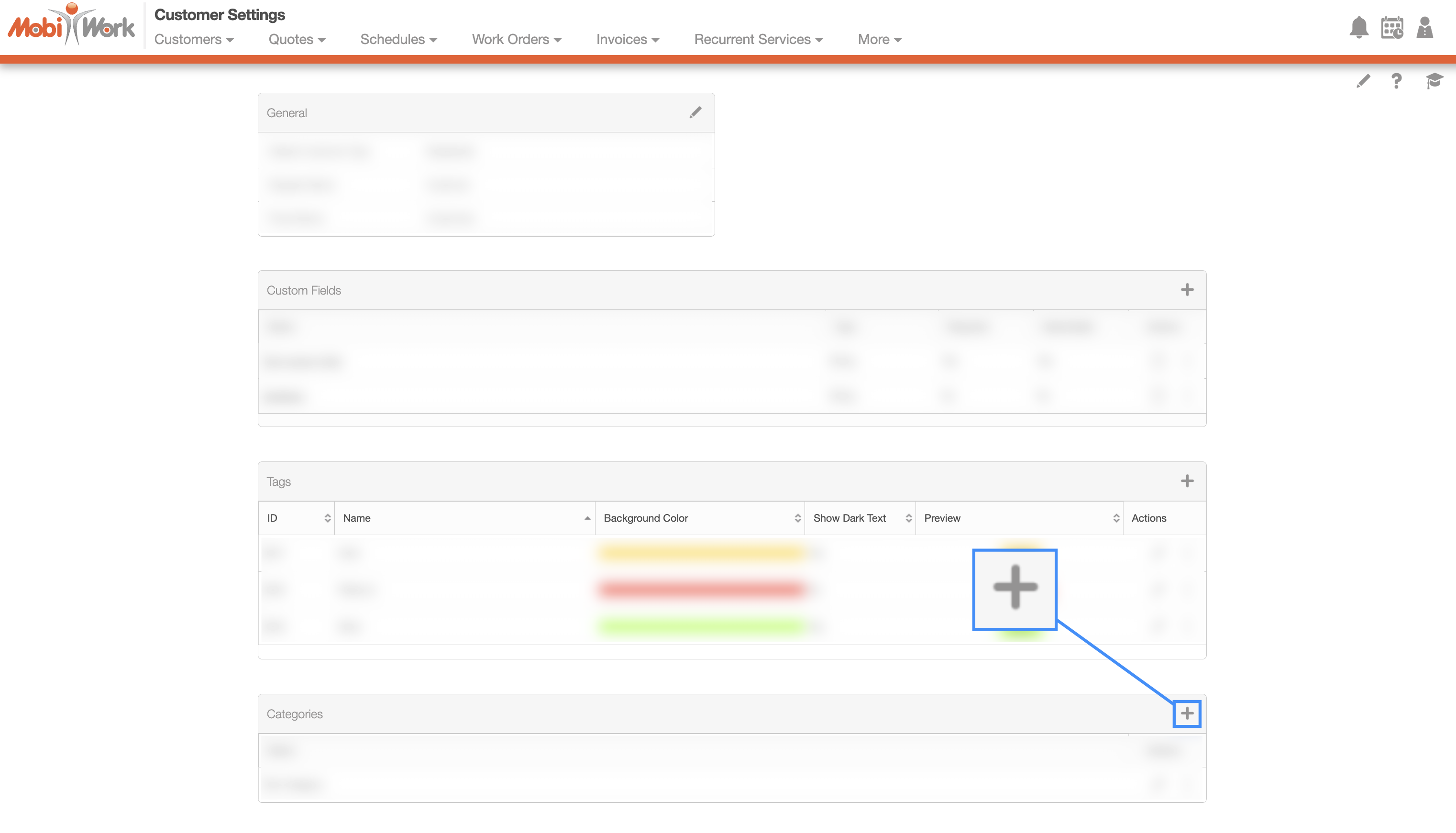
To add a new category, click on the Plus Sign button:
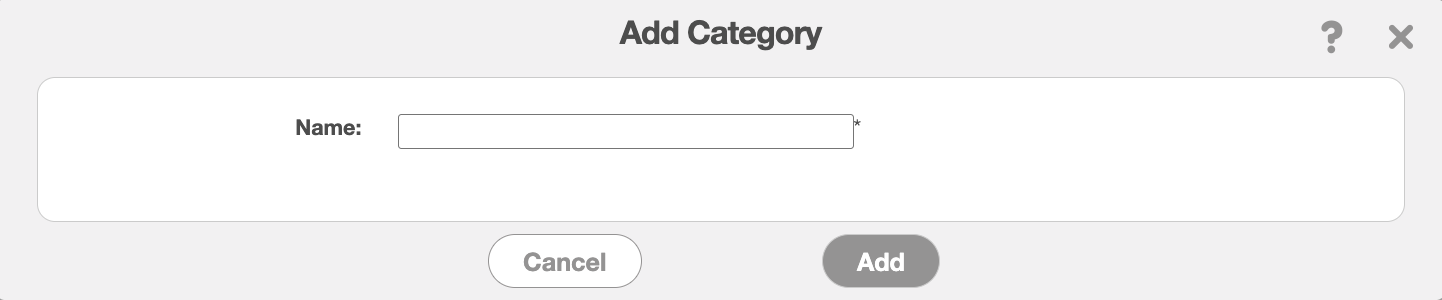
The Add Category pop-up window will then automatically appear.
Enter the name of the category and then click on the Add button to save the new category:
The new category will then be added in the selected entity.
Once the category has been added to the corresponding settings page, you will be able to apply that category to specified entities. When adding or editing an entity, the category will appear in the "Category" section of the window. The example below displays the category field within the Edit Customer pop-up window:
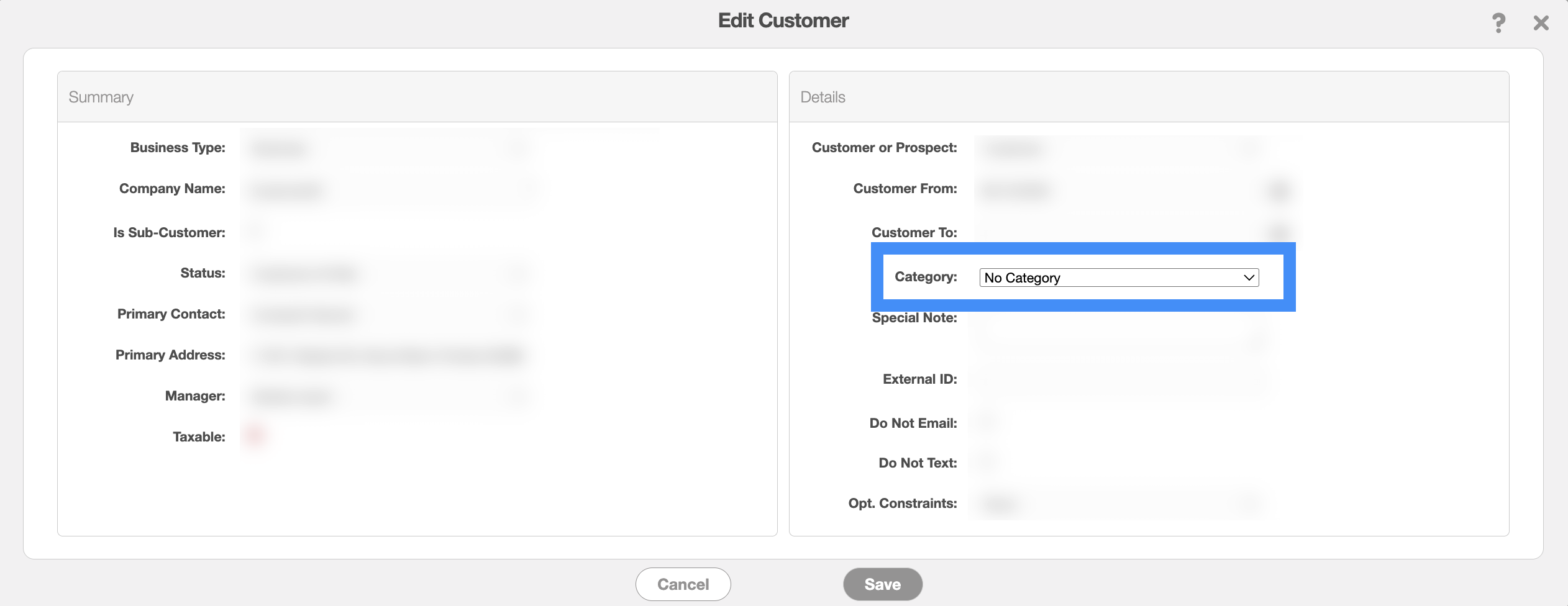
If you would like to update the category associated with the entity you can easily do so while editing the corresponding entity.
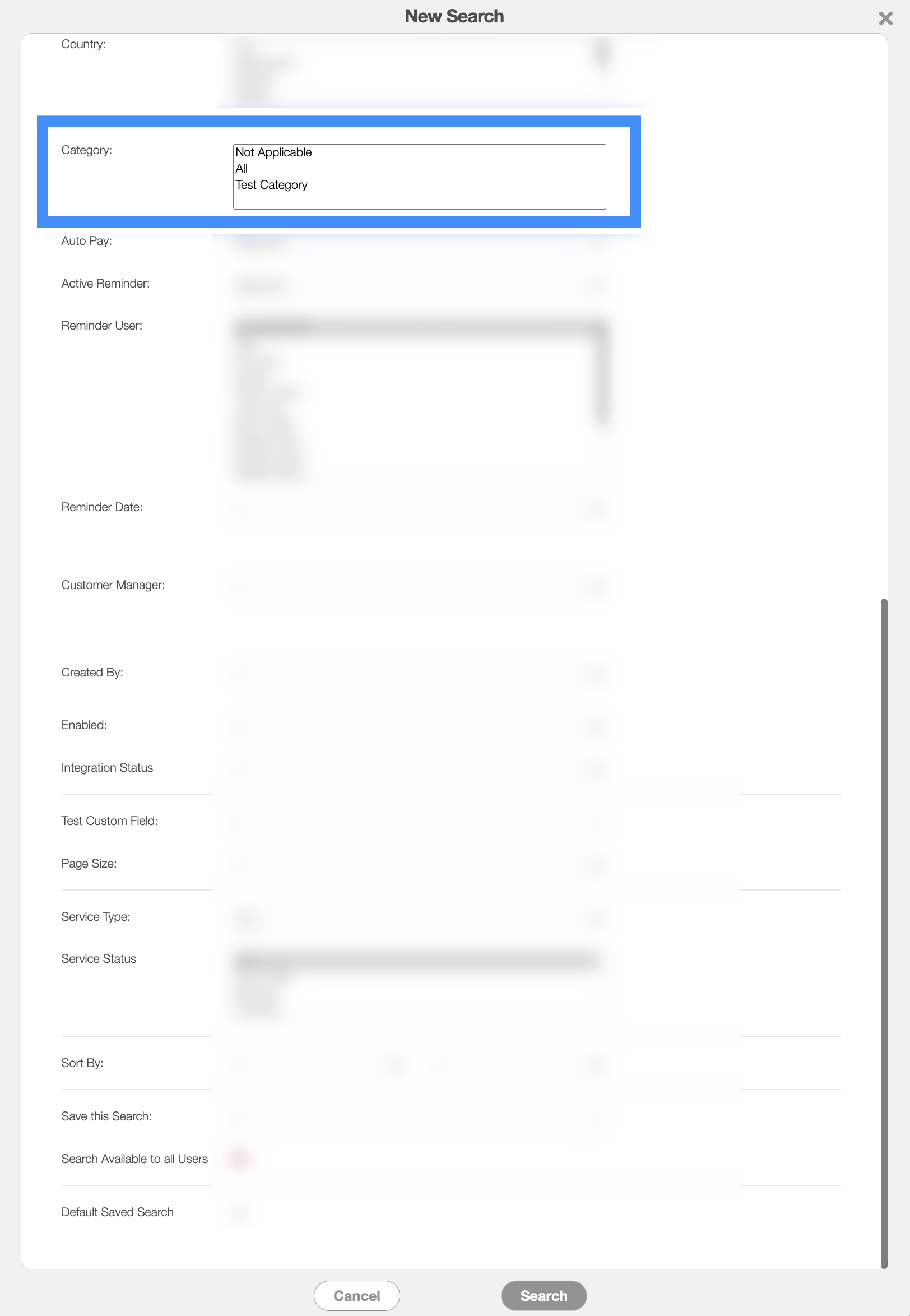
You will also be able to use the newly created category in your saved searches. You can create a saved search to search for records associated with the specified category, as shown in the customer search example below:
You can edit an existing category by navigating to the corresponding Settings page. Click on the Individual Actions or the Pencil icon of the desired category and from the drop-down select the "Edit" option:

The Edit Category pop-up window will then appear:
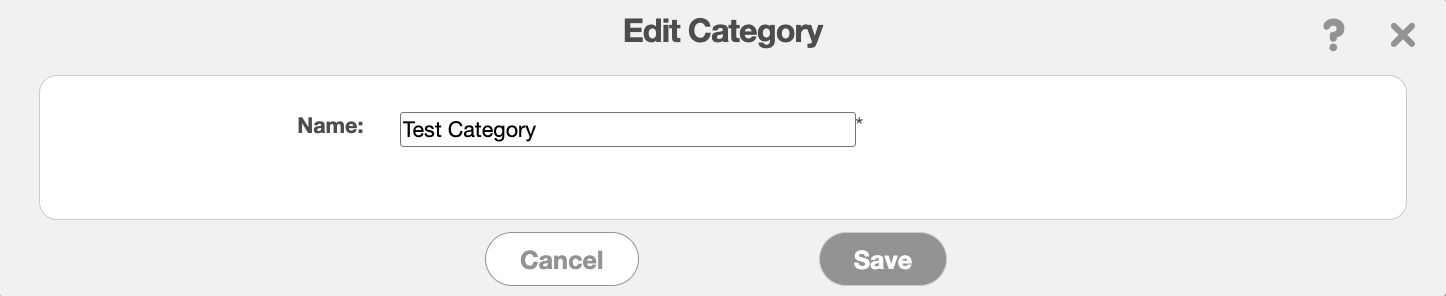
In this window, you will be able to update the name of the category.
You can delete a category by navigating to the corresponding Settings page. Click on the Individual Actions of the desired category and from the drop-down select the "Delete" option:

The Delete Category pop-up window will then appear. Click the Yes button to confirm the removal of the category:
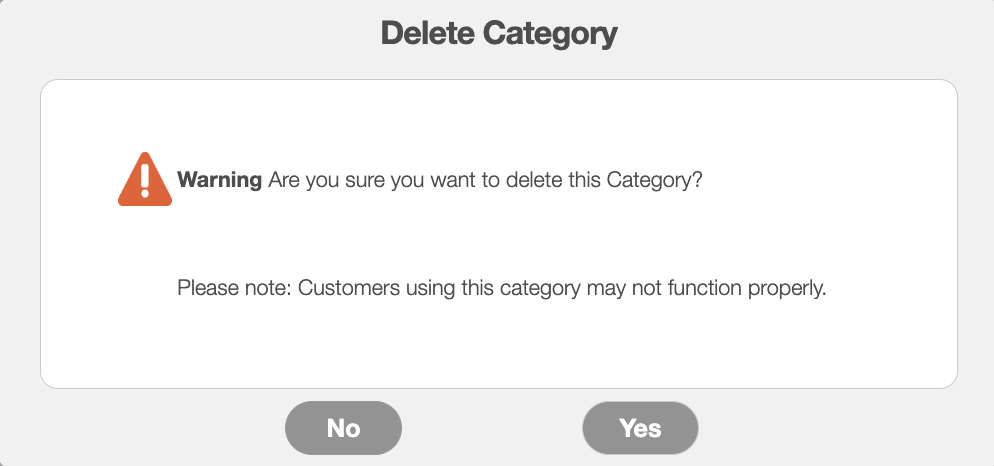
Important: Please note that this action is permanent and cannot be undone. Any data collected for this category will likewise be permanently deleted. Also, entities using this category may not function properly after its removal.