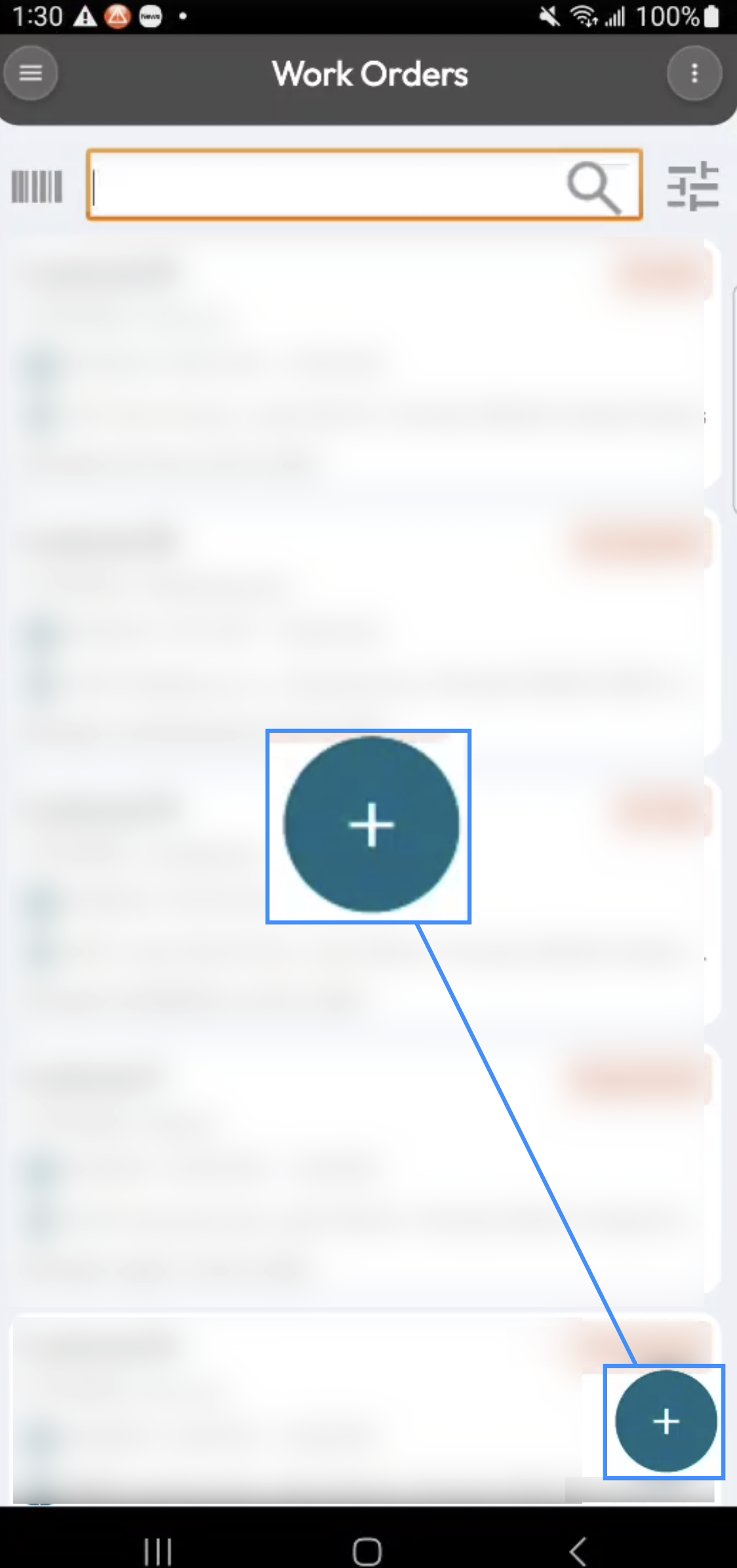
The Entity List page displays a list of records for a specific MobiWork feature, allowing you to quickly view, search, and manage the corresponding entities. While the information displayed varies depending on the feature, list pages generally provide common tools for finding existing records, adding new records, and performing actions on multiple records:
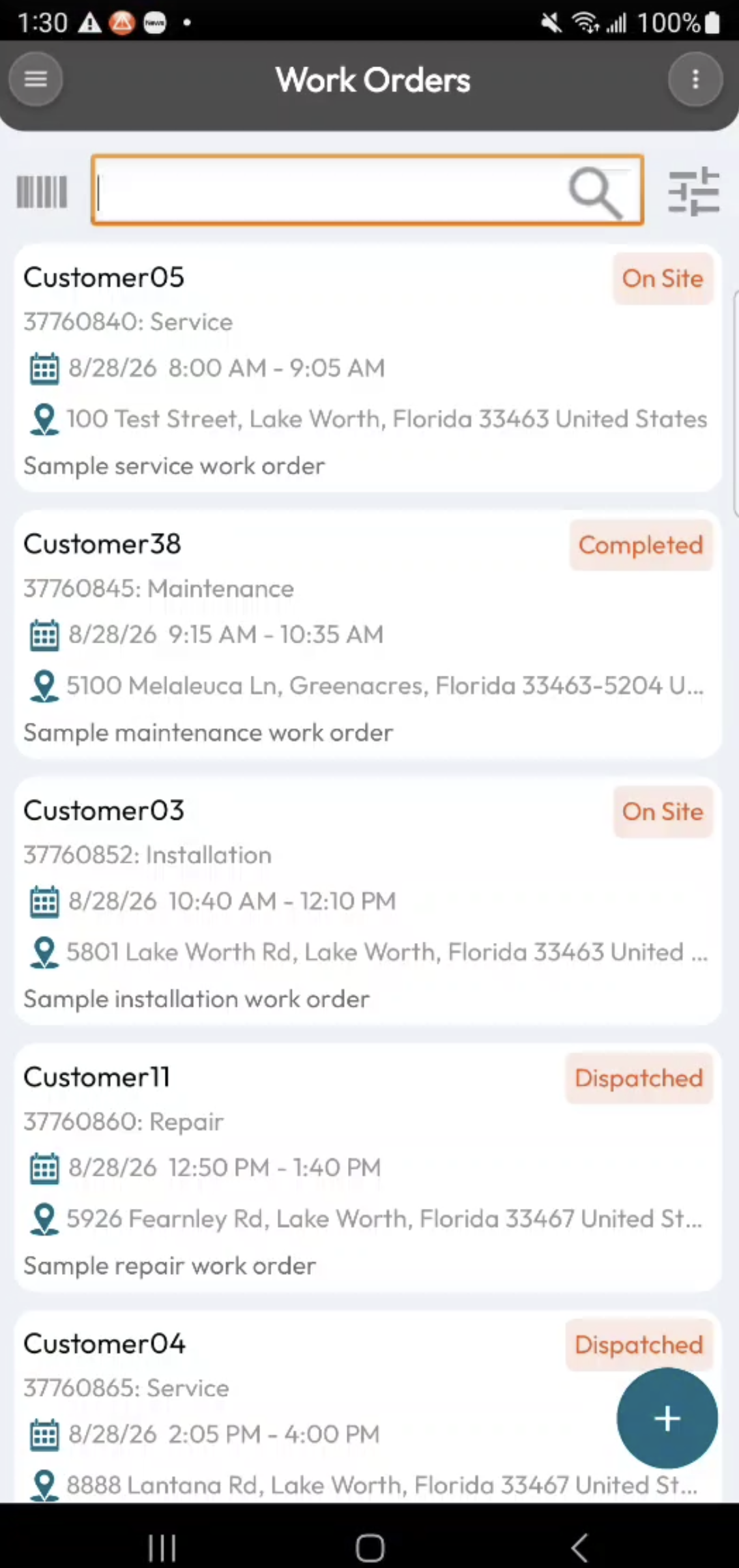
For this example, we’ll use the Work Order List page to demonstrate the common features and functionality available on an Entity List page.
On the Entity List page you will be able to perform the following actions:
View an entity
Add a entity
Search for a new entity
Access additional actions
The list page displays the entities associated with the selected feature. Depending on the feature, each entry may include important information such as the entity’s name, status, date, customer, location, or other relevant details:
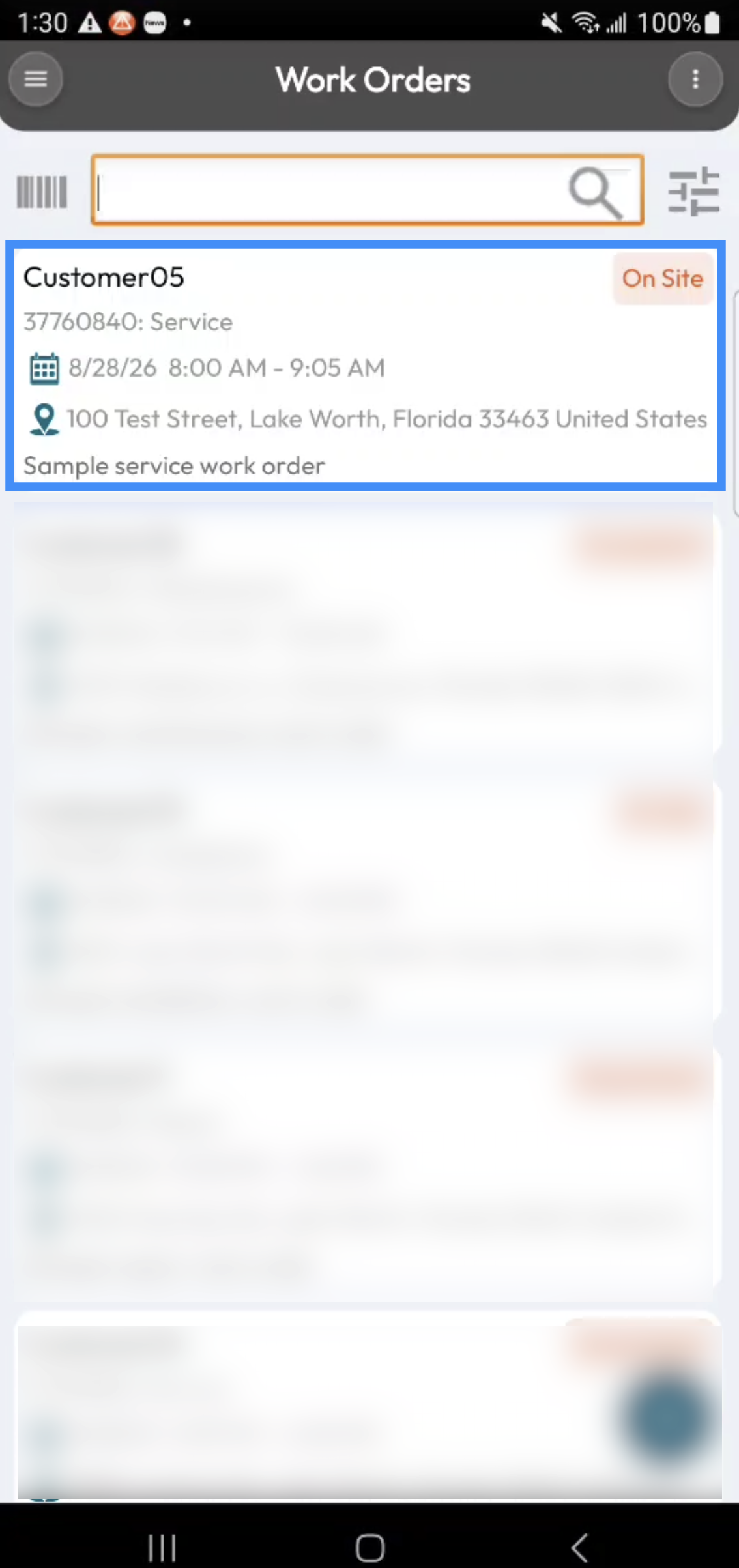
Select an entity from the list to open its View page, where you can review and manage the entity’s details.
The Barcode Scanner allows you to scan a barcode or SKU to quickly locate a corresponding entity. This can be especially useful when working with physical items such as Work Orders, Parts, Assets, and other entities that have an associated barcode or SKU:
Simply scan the barcode using your mobile device to search for the corresponding record.
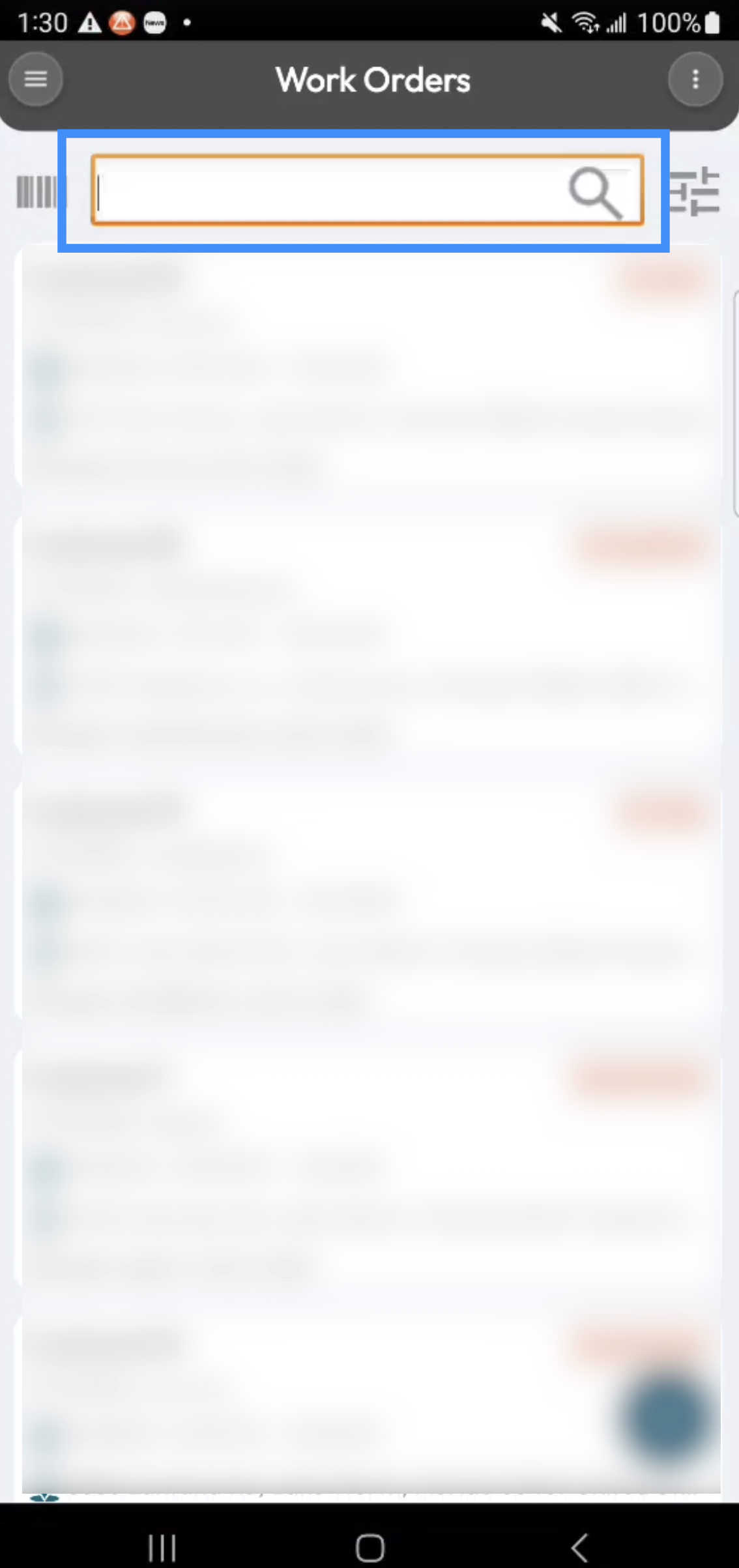
The list page provides several ways to quickly find an existing entity. You can use the standard search bar, scan a barcode, or use Advanced Search to narrow your results. Use the Search Bar to enter text and quickly find entities that match your search criteria. This is useful when you know information such as an entity name, number, customer, or other searchable information:
The Advanced Search provides more powerful filtering options when you need to narrow down your results. You can specify multiple search criteria to locate specific entities without having to manually browse through the entire list:
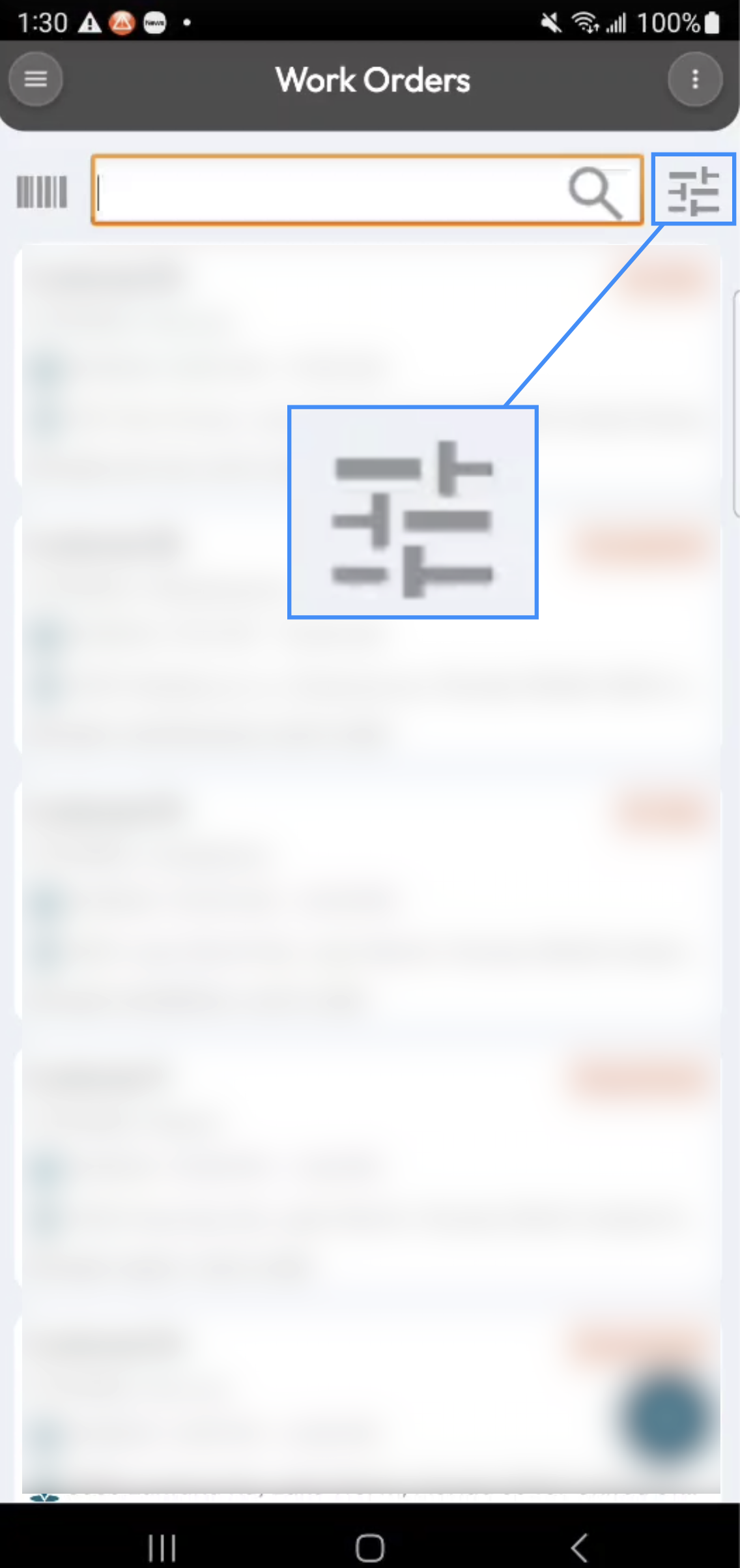
The Advanced Search is particularly useful when working with large lists or when you need to find records based on specific attributes, statuses, dates, locations, or other available fields.
The Actions Panel provides additional tools and actions that can be performed from the Entity List page. The available actions depend on the feature and your permissions:
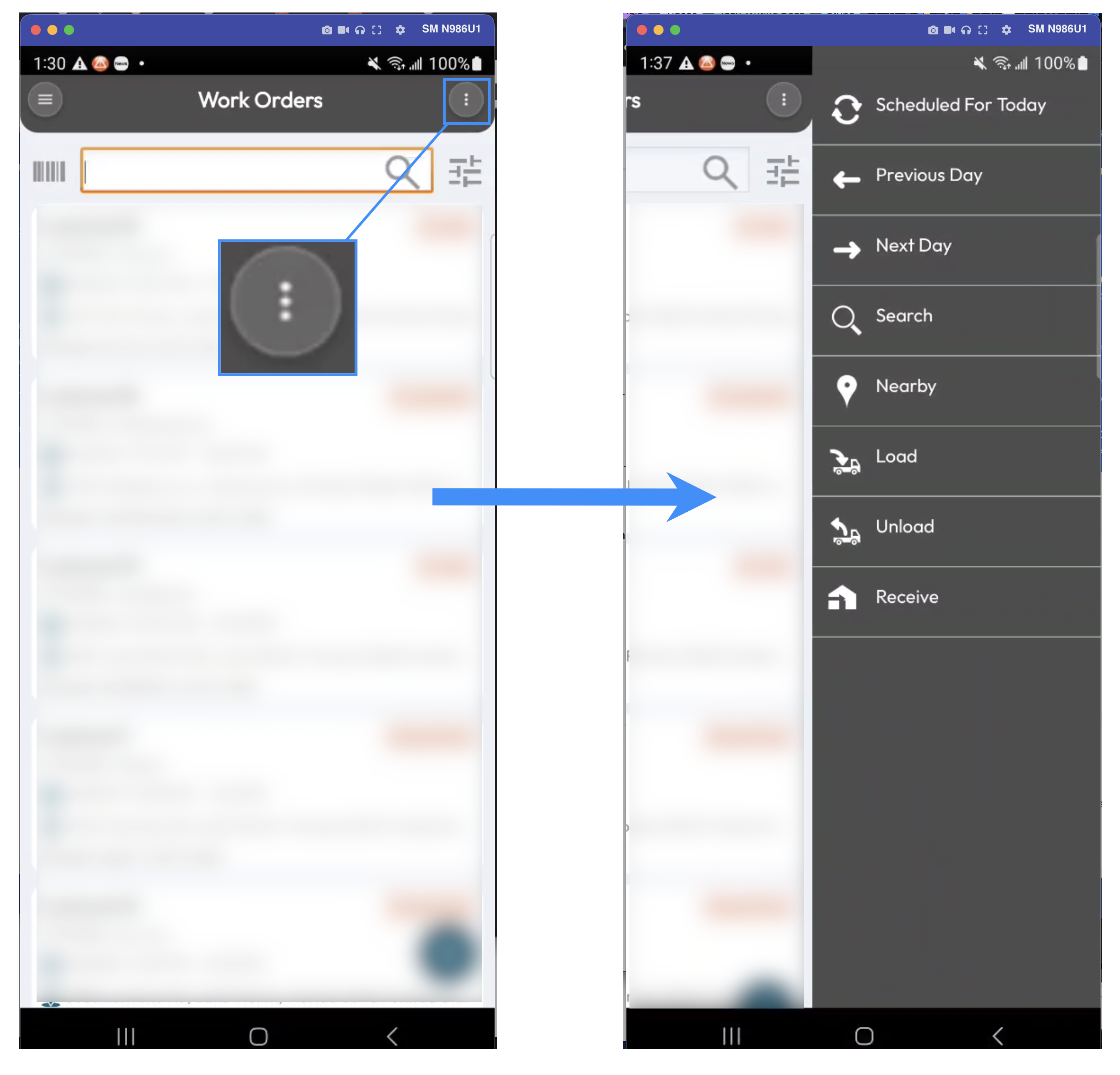
For example, on the Work Order List page, the Actions Panel can provide options to search for work orders based on the previous or next day, as well as actions for loading and unloading assets or parts.
You can add a new entity directly from the list page by selecting the Add or Plus Sign tile. The available fields and information will vary depending on the type of entity you are creating: