

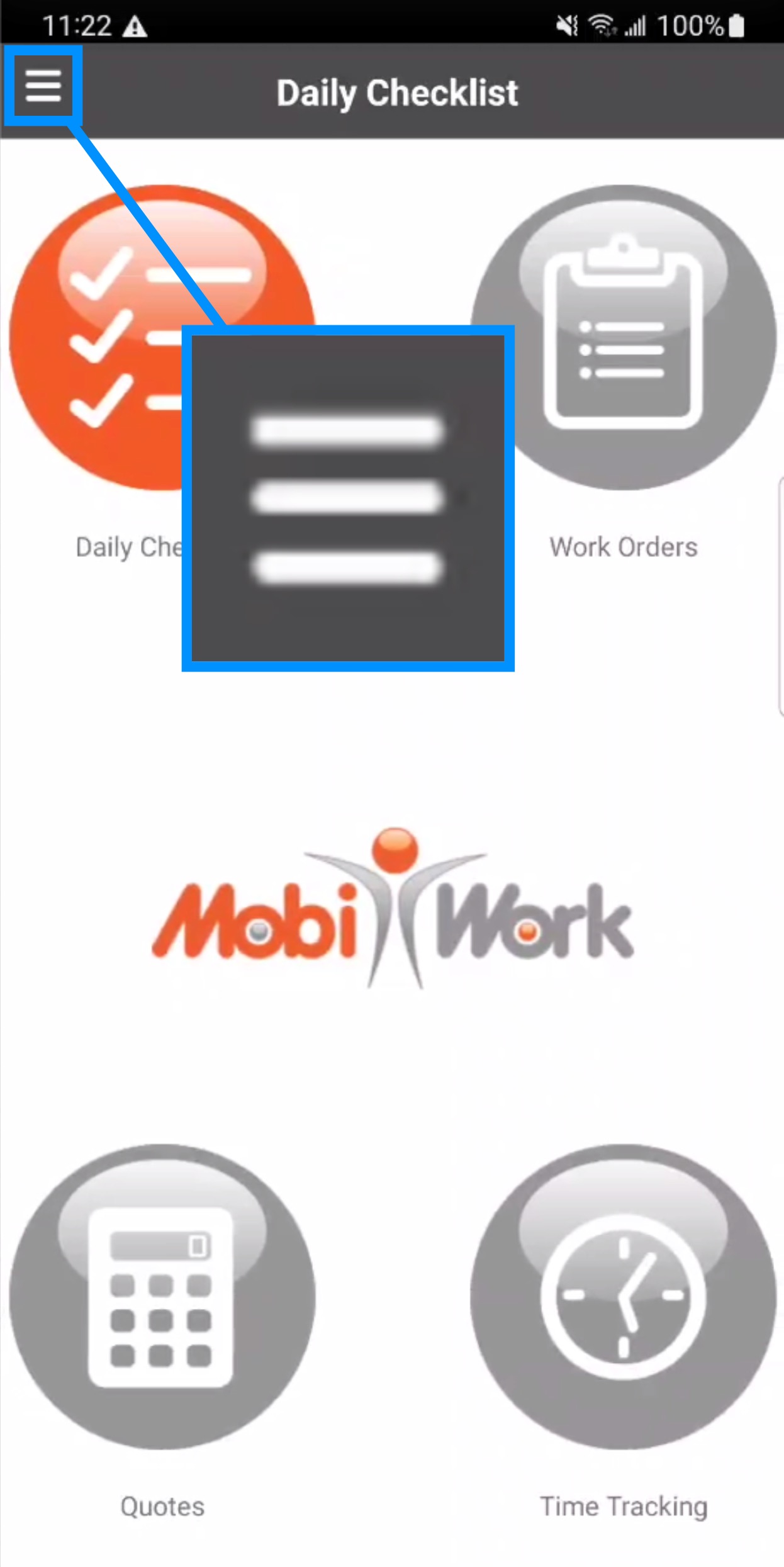
You can access the Customers feature through the Menu Panel or through the Side Menu in the top left corner. The image below shows how to access the Customers tile from the main menu:
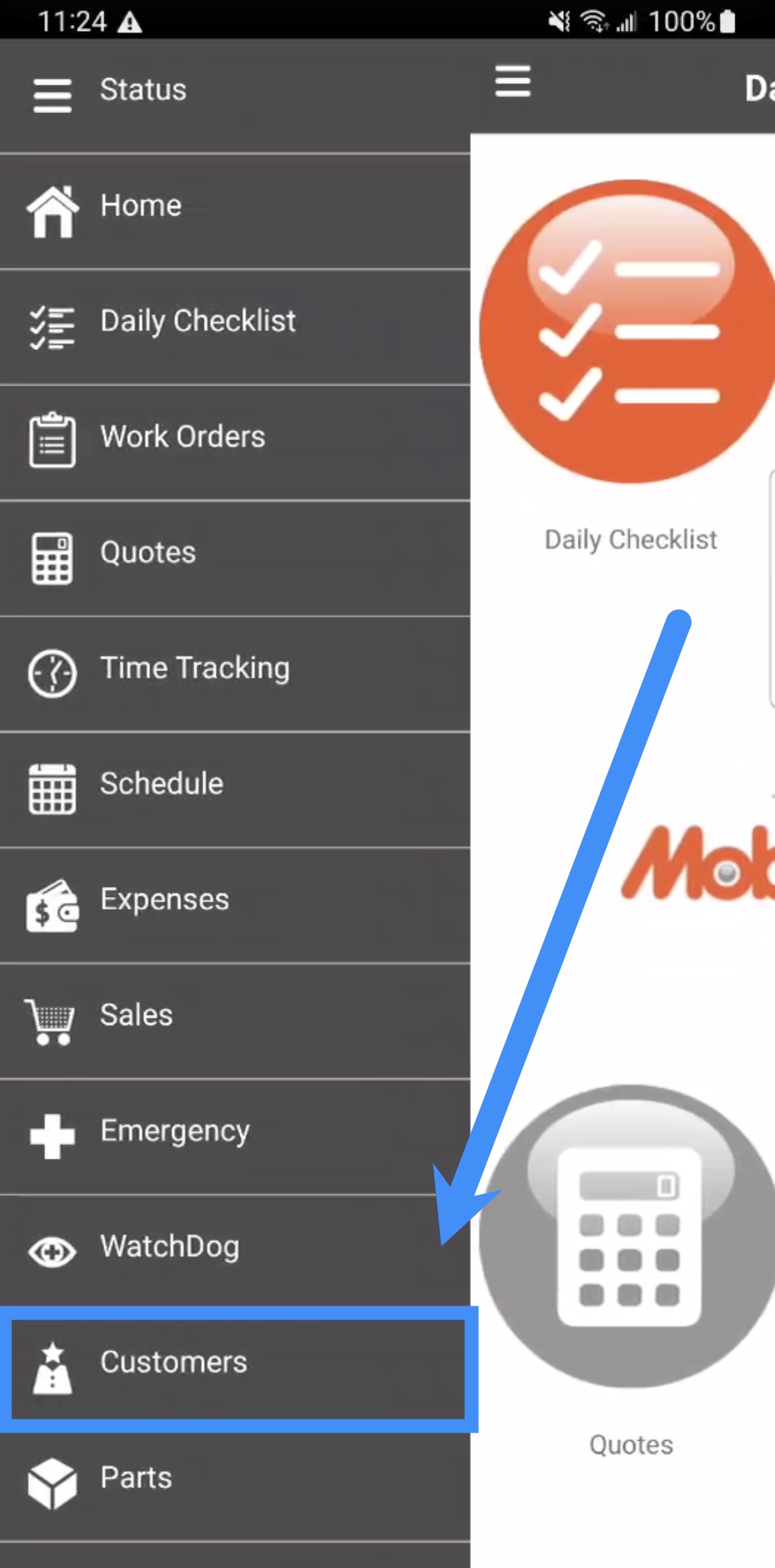
However, you can also access the Customers feature from the Side Menu; to do so, scroll through the features until you locate the Customers tile and then press it:
Once you access the Customers feature from the mobile application, you will be redirected to the main Customers feature page:
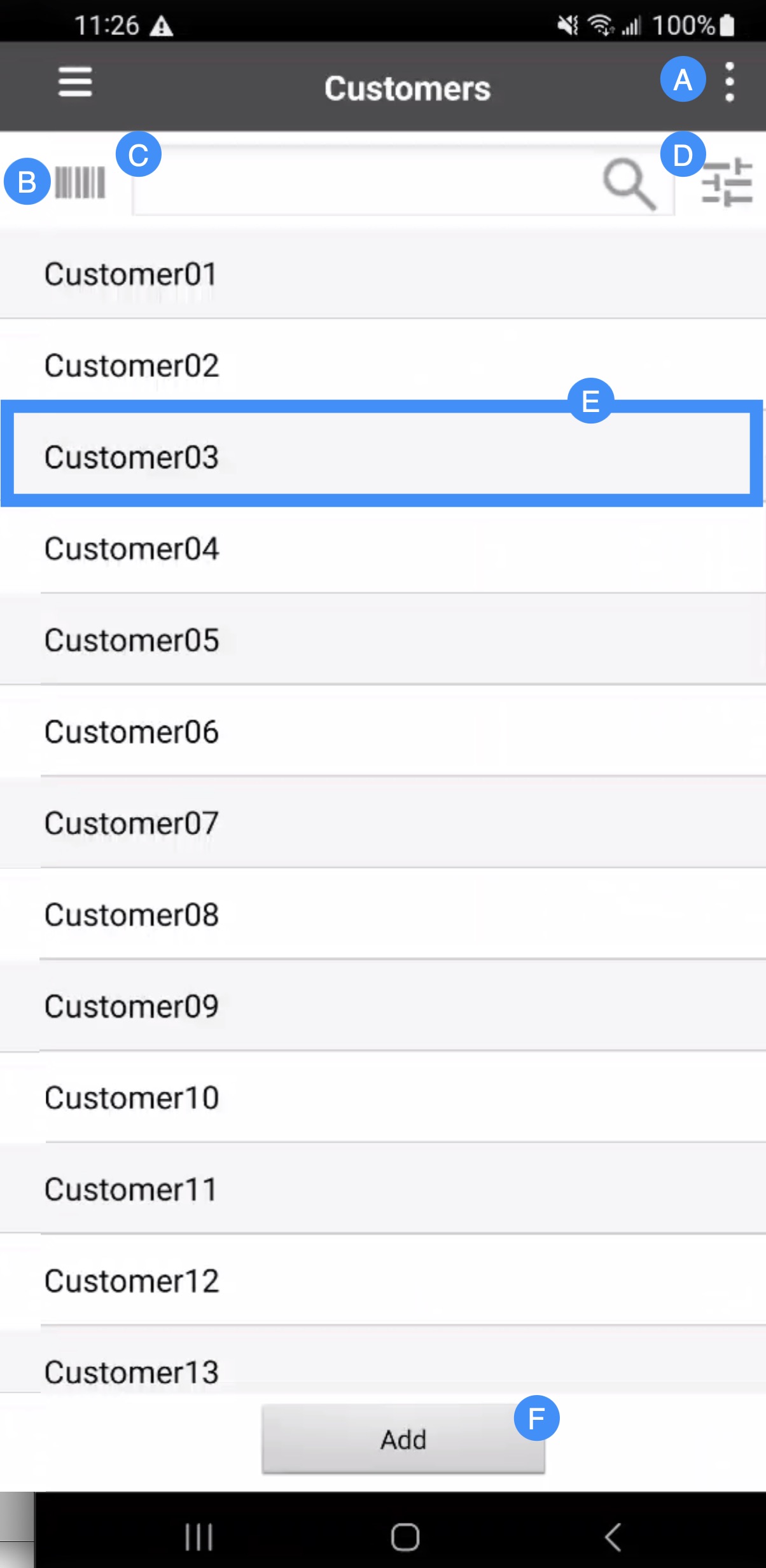
The Actions Panel which will allow you to access the additional functions (e.g., refresh the customer list, add a new customer, search for customers, and locate nearby customers).
The search area. There are several valuable tools that will help augment your search for customers. These tools include the Barcode tile which will allow you to search for a customer through the RFID code, the Search Bar and Magnifying Glass tile which will allow you to input specific search criteria to locate a specified customer, and the Advanced Search Filter tile will allow you to conduct an advanced search for a specified customer.
The Plus Sign tile will allow you to quickly add a new customer.
online-help.platform.features.customers.mobile.mobile_customers_layout.paragraph6
online-help.platform.features.customers.mobile.mobile_customers_layout.paragraph7
online-help.platform.features.customers.mobile.mobile_customers_layout.paragraph8
By pressing on the Actions Panel, you will be able to access additional customer functions; including refining your customer search, adding a new customer or refreshing the Customers feature page:
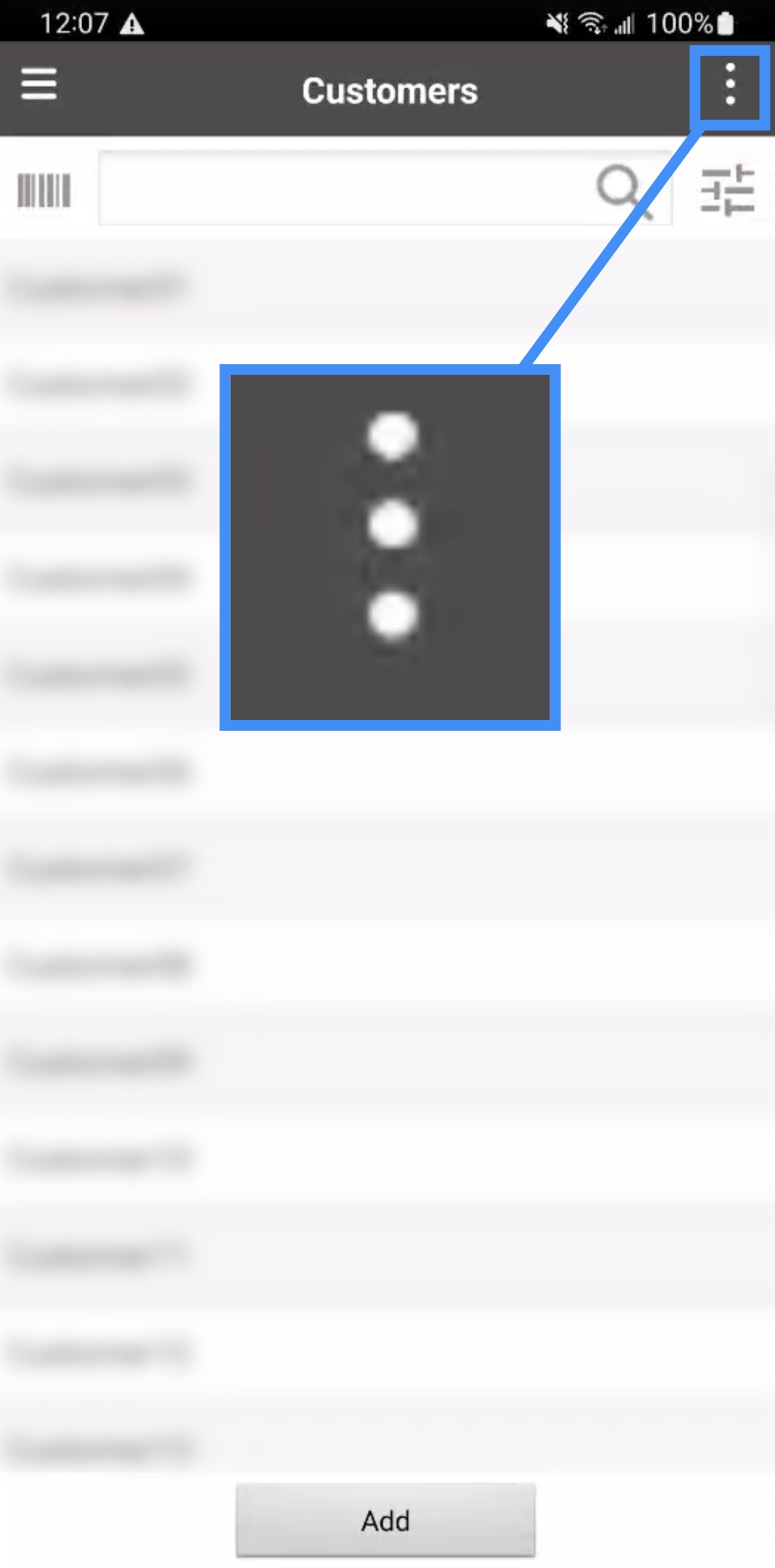
These additional functions are explained below:
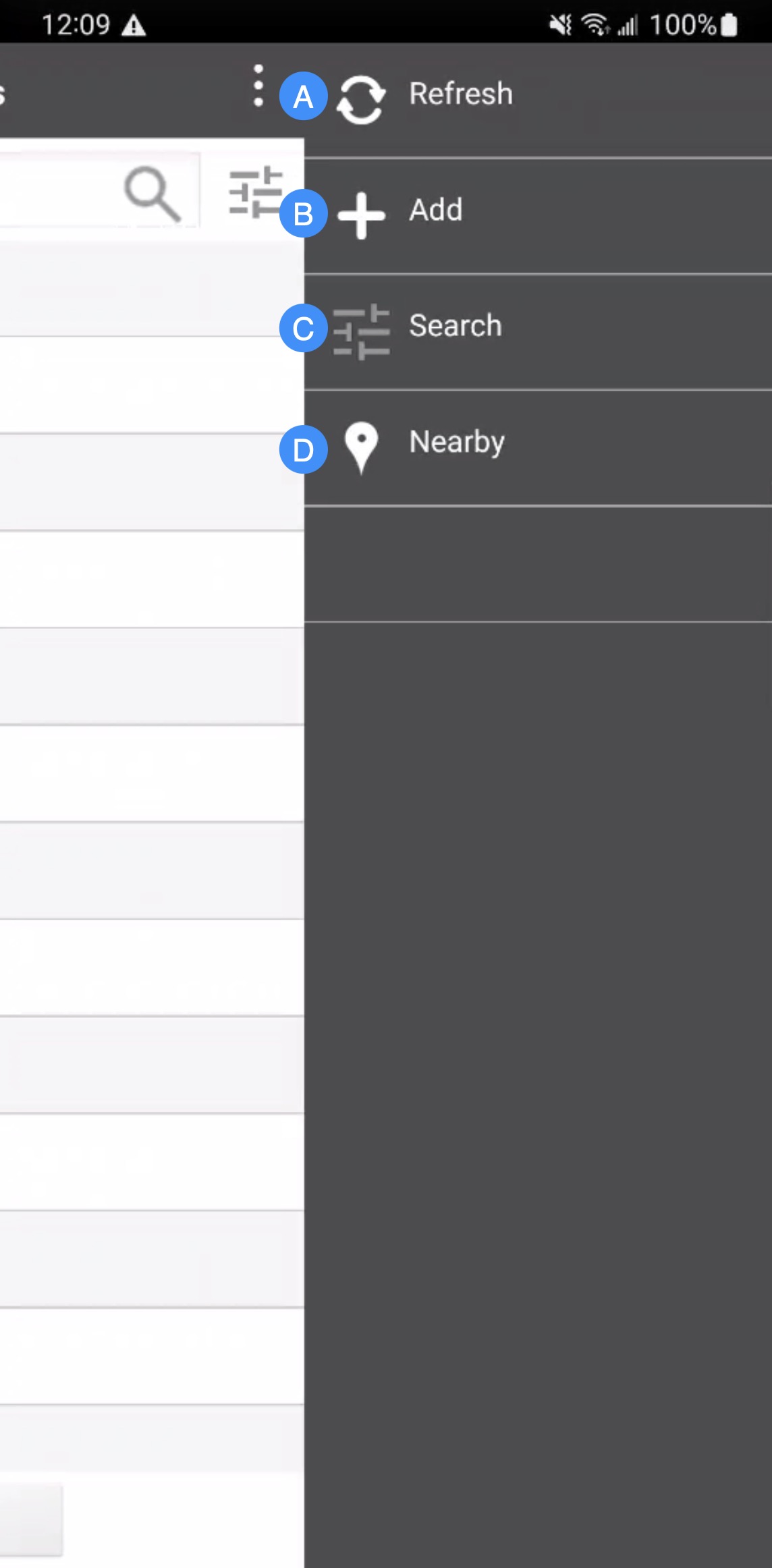
The Refresh tile will allow you to refresh the list of customers.
The Add tile will allow you to add a new customer.
The Advanced Search Filter tile will allow you to search through your work orders for a specific customer.
The Nearby tile will allow you to search for customers that are located near your current location.