- Overview
- Account Settings
- Assets
- Connectors Framework
- Overview
- QuickBooks Online
- QuickBooks Desktop Web Connector
- Azure AD
- Salesforce Integration
- FleetNet Connector
- Avalara Connector
- Inbound REST API
- Outbound REST API
- Mailchimp Connector
- Text Messaging Connector
- Clearent Connector
- Stripe Connector
- HubSpot Connector
- UKG Connector
- Paylocity Connector
- UKG Connector
- Gusto Connector
- iSolved Payroll Connector
- Customer Portal
- Customers
- Dashboards
- Devices
- Dispatching
- Forms
- Inventory
- Invoices & Billing
- Locations
- Payments
- Parts
- Projects
- Quotes
- Recurrent Routes
- Recurrent Services
- Reports
- Sales Orders
- Schedule
- Services
- Tasks
- Text Messaging
- Time Tracking
- Users
- Work Orders

Any cards saved with Braintree will not be accessible when switching from another Payment Connector to Clearent.
If your account already has another Payment Connector enabled, you must first disable it before setting up the Clearent Payments Connector.
Note: MobiWork only allows one payment connector per account.
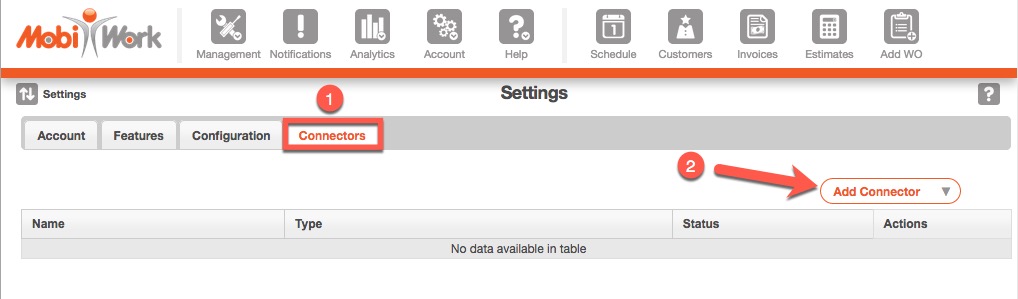
- In your MobiWork account, navigate to Account > Account Settings and click on the Connectors tab.
- Choose Add Connector.
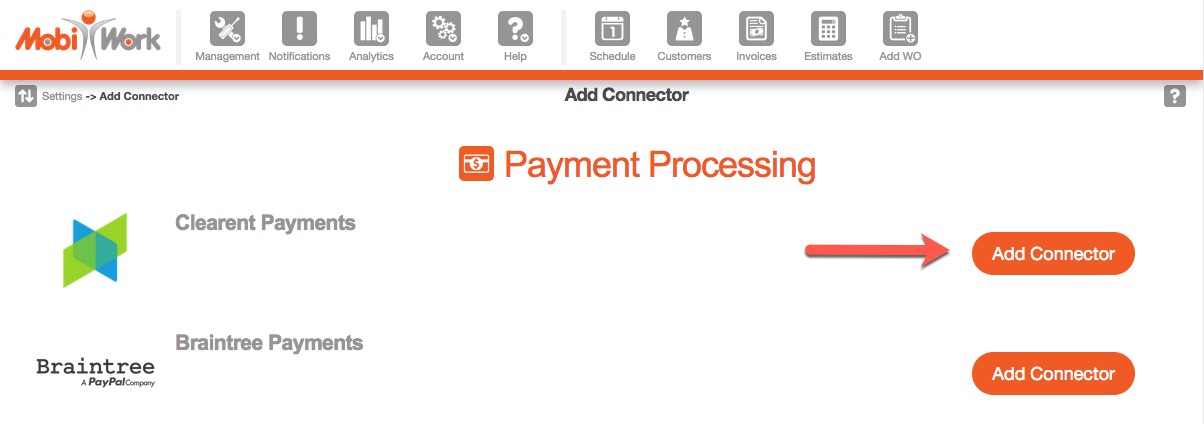
- Next, scroll down to the Payment Processing section, locate Clearent and click Add Connector.
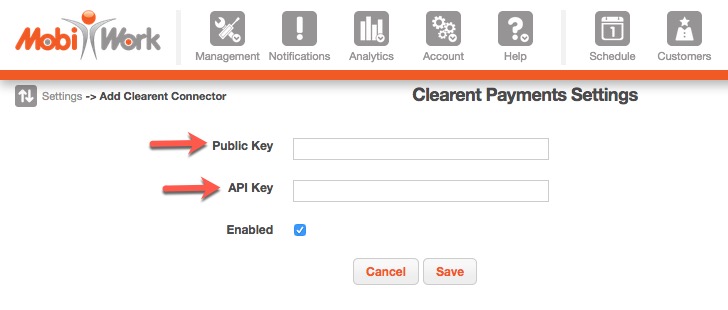
- Fill out the API and Public Keys with your unique keys.
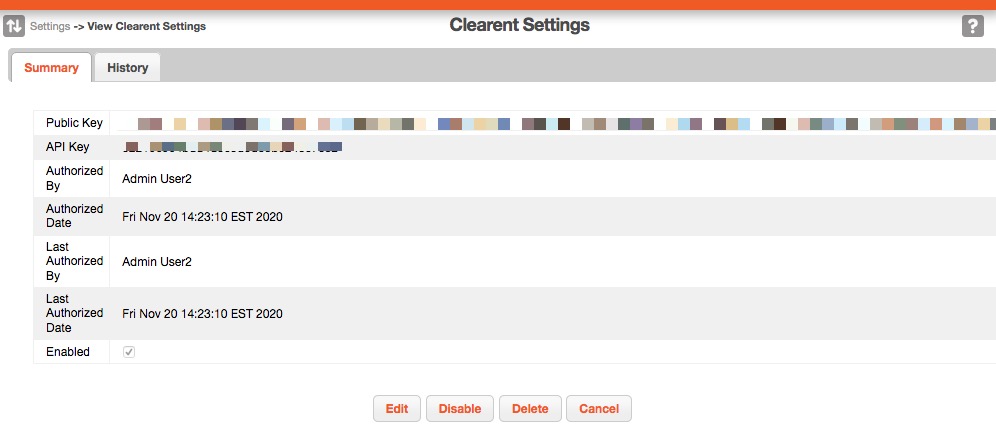
- Click Save.