
Attaching a Credit Card to a Customer for Future Payments
Attaching a Credit Card to a Customer for Future Payments
If you have the credit card the customer will be using to make payments, you can add credit cards to the customer's file for later use.
Note: This will only be available to Global Admin users, or Users with permission to Edit Customer Billing. If you do not see the option to add a card to a customer account, please contact your company Admin(s).
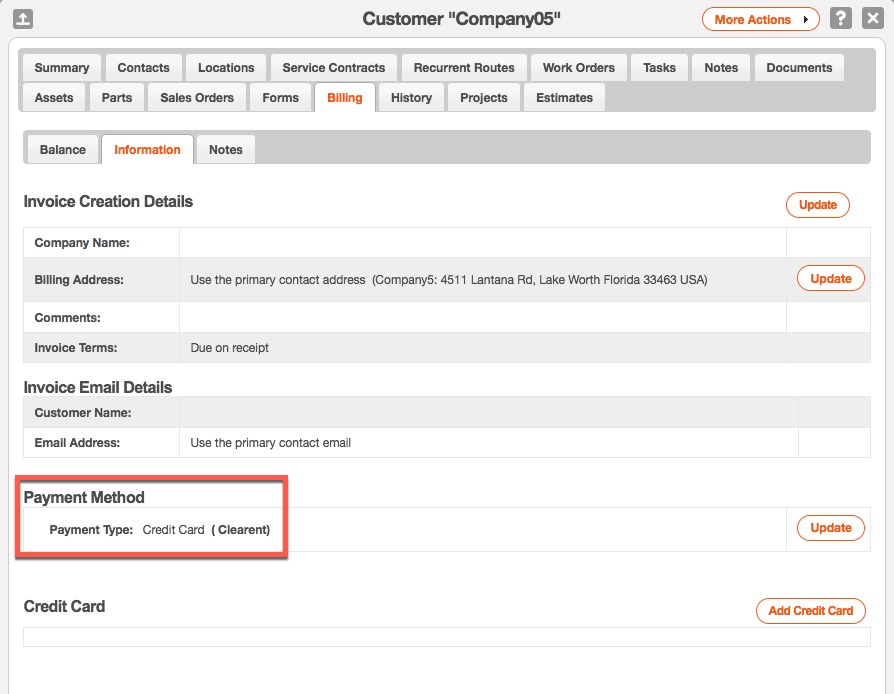
Prerequisite: If a customer does not show their default Payment Method set up as Credit Card (Clearent), you'll first need to:
If you have the credit card the customer will be using to make payments, you can add credit cards to the customer's file for later use.
Note: This will only be available to Global Admin users, or Users with permission to Edit Customer Billing. If you do not see the option to add a card to a customer account, please contact your company Admin(s).
Prerequisite: If a customer does not show their default Payment Method set up as Credit Card (Clearent), you'll first need to:
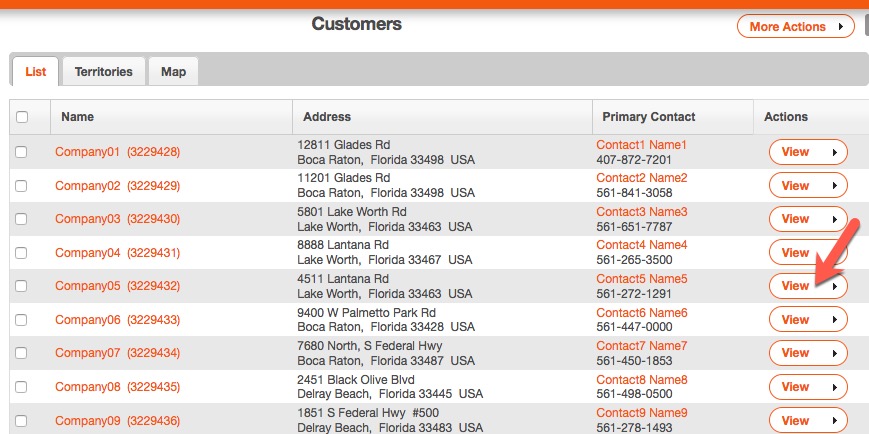
- a) Navigate to Management > Customers.
- b) Click a customer to view their file.
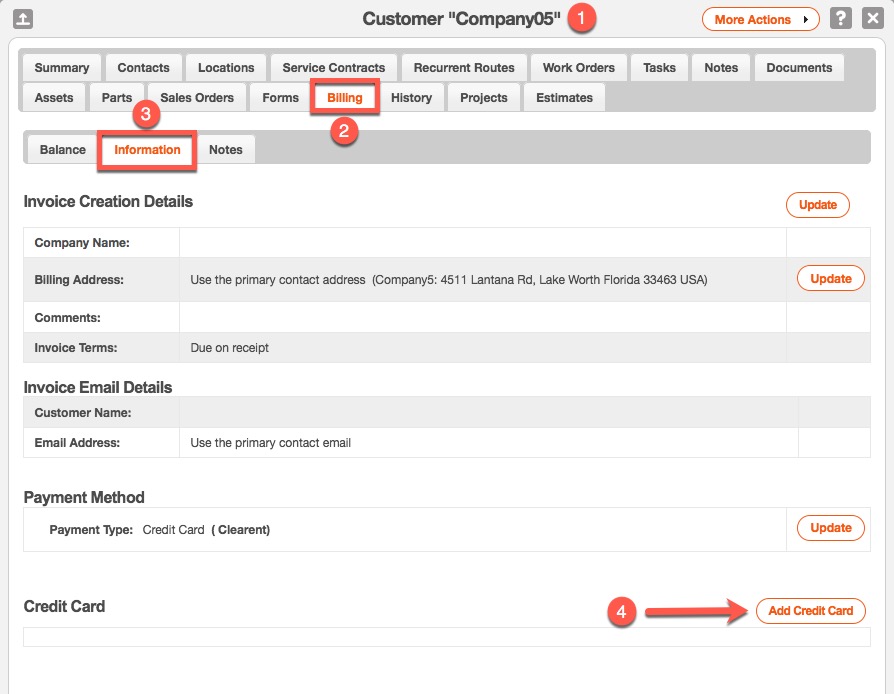
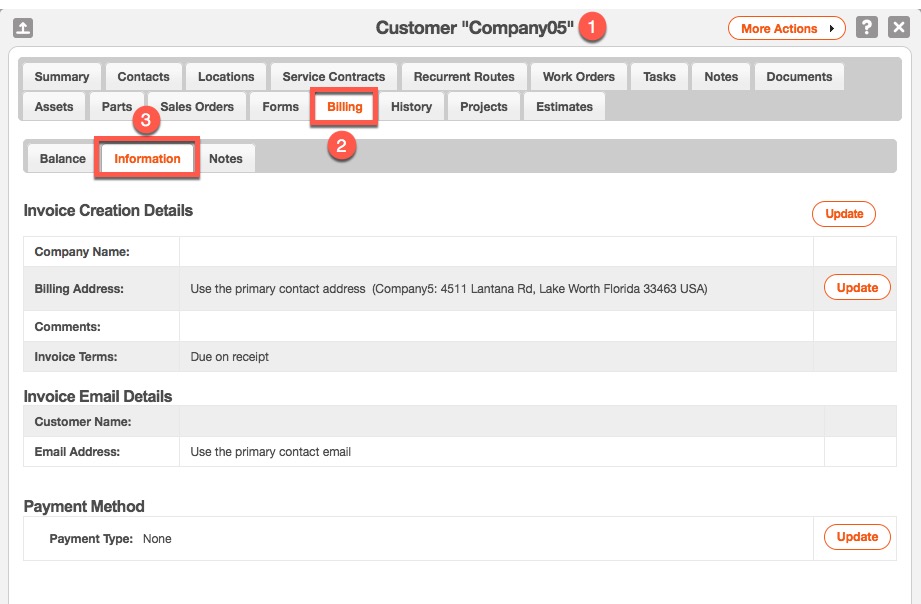
- c) Click the Billing tab, then click the Information sub-tab.
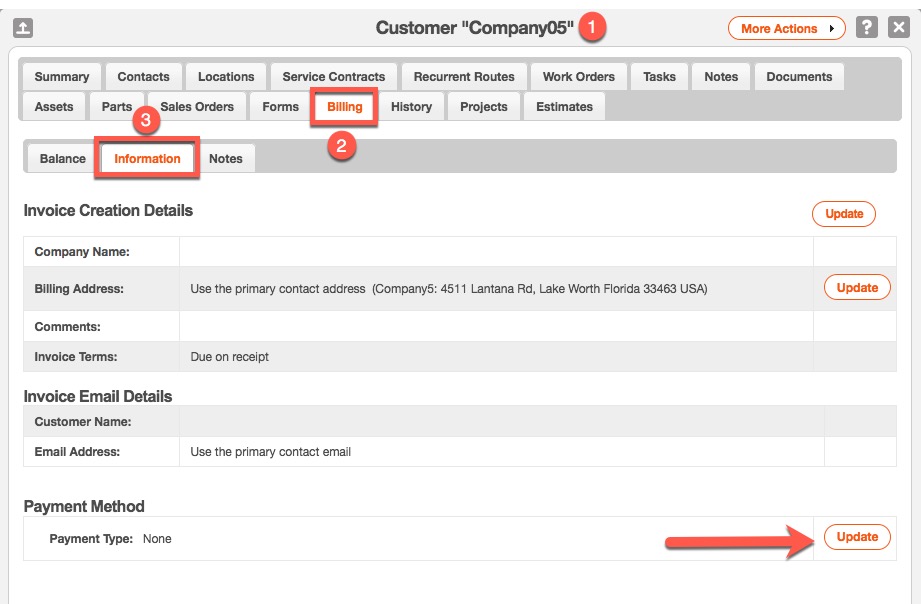
- d) Under Payment Method, click Update.
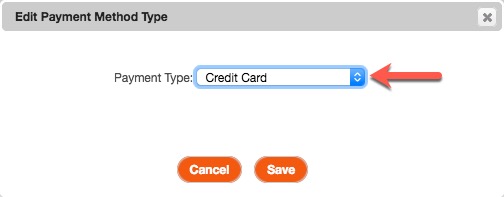
- e) On the Edit Payment Method Type window that appears, click the drop-down menu next to Payment Type and select Credit Card.
- f) Click Save.
Assigning a Card from Web-based Platform for Office Users
- Navigate to Management > Customers.
- Find the customer you'd like to assign a credit card and click to view the customer's file.
- Click the Billing tab, then click the Information sub-tab.
- Click Add Credit Card.
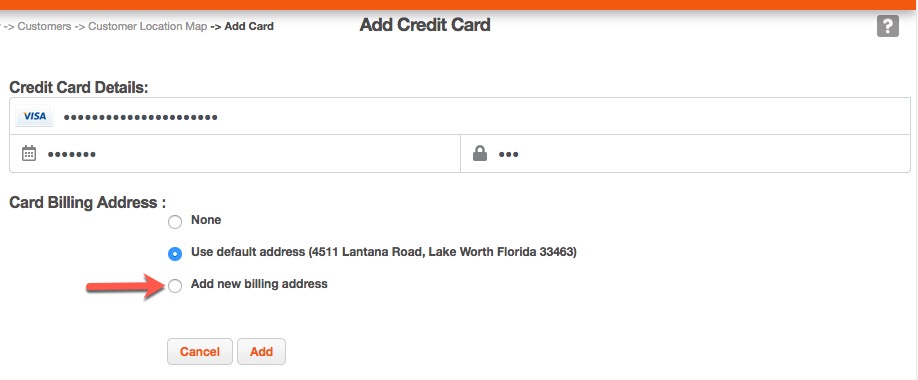
- Enter the Credit Card Details and select a Card Billing Address.
- If the card billing address does not match the default billing address listed in MobiWork, you may select Add New Billing Address.
- Click Add.
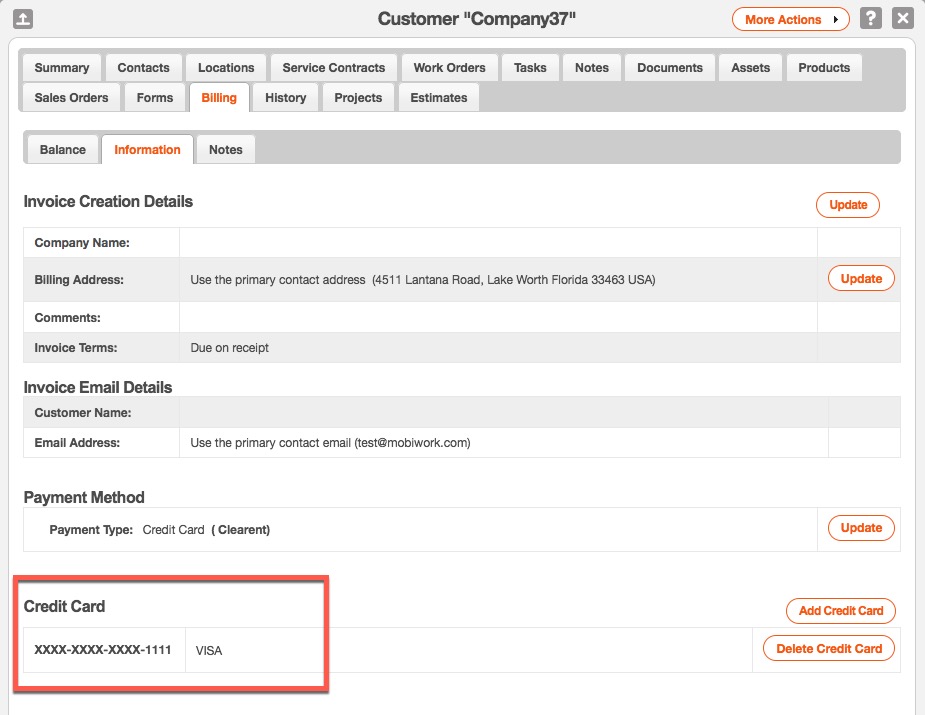
- The card entered will now be listed under Customers > Billing > Information and be available for future payments.
- To delete any previously stored credit cards, click Delete Credit Card.