
- Overview
- Account Settings
- Assets
- Connectors Framework
- Overview
- QuickBooks Online
- QuickBooks Desktop Web Connector
- Azure AD
- Salesforce Integration
- FleetNet Connector
- Avalara Connector
- Inbound REST API
- Outbound REST API
- Mailchimp Connector
- Text Messaging Connector
- Clearent Connector
- Stripe Connector
- HubSpot Connector
- UKG Connector
- Paylocity Connector
- UKG Connector
- Gusto Connector
- iSolved Payroll Connector
- Customer Portal
- Customers
- Dashboards
- Devices
- Dispatching
- Forms
- Inventory
- Invoices & Billing
- Locations
- Payments
- Parts
- Projects
- Quotes
- Recurrent Routes
- Recurrent Services
- Reports
- Sales Orders
- Schedule
- Services
- Tasks
- Text Messaging
- Time Tracking
- Users
- Work Orders
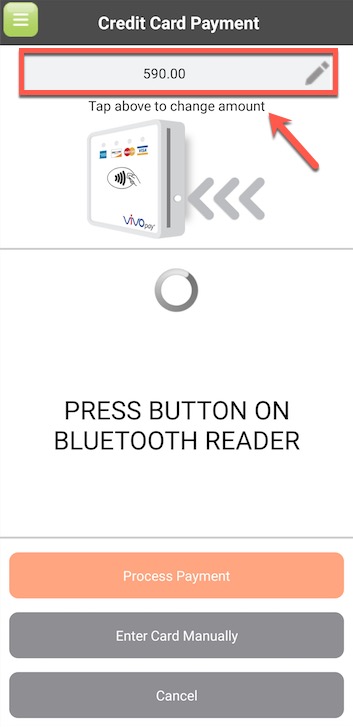
If you'd like to change the payment amount (e.g. splitting a payment between two payment methods), you're given the ability to change the amount of the payment before processing.
- After you've selected Add Payment and Credit Card, tap the payment amount box at the top of the screen before the payment is taken.
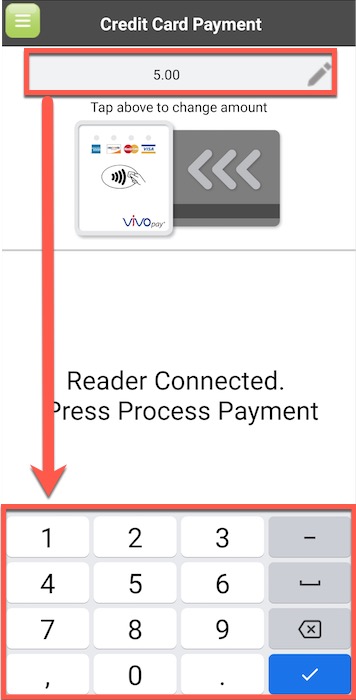
- Enter the new amount to charge the credit card and tap Done (on iOS) or arrow down to dismiss the keyboard (on Android).
- Process the payment as usual.
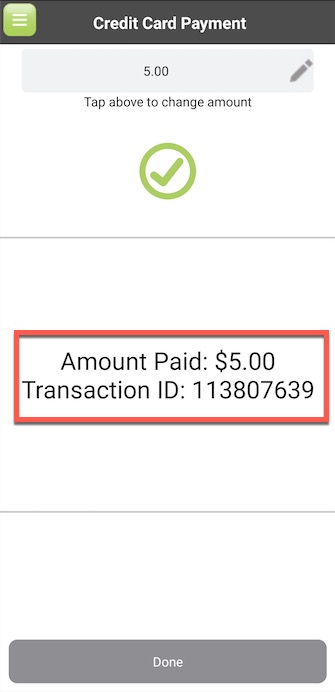
- You'll receive a confirmation of the payment and the remaining balance will be shown. Click Done.
- To pay the remaining balance, tap Add Payment and follow the same steps listed above.