

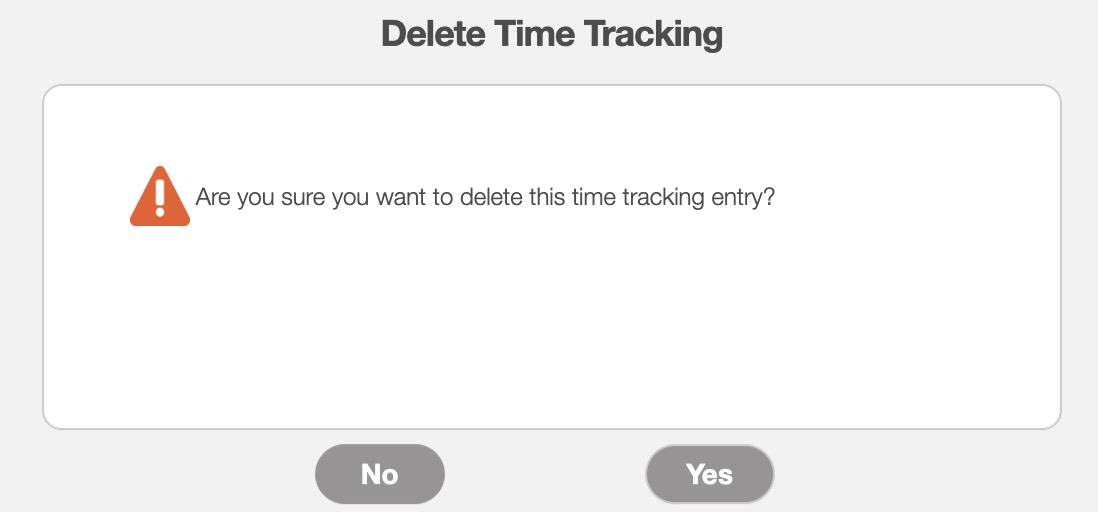
There are several different ways that you can delete a user's time tracking. You will be able to delete them from the work order, the Time Tracking "List" tab, as well as the View Time Tracking Entries pop-up window.
The sections below will highlight how to delete a user's time tracking from the aforementioned features.
View Time Tracking Entries
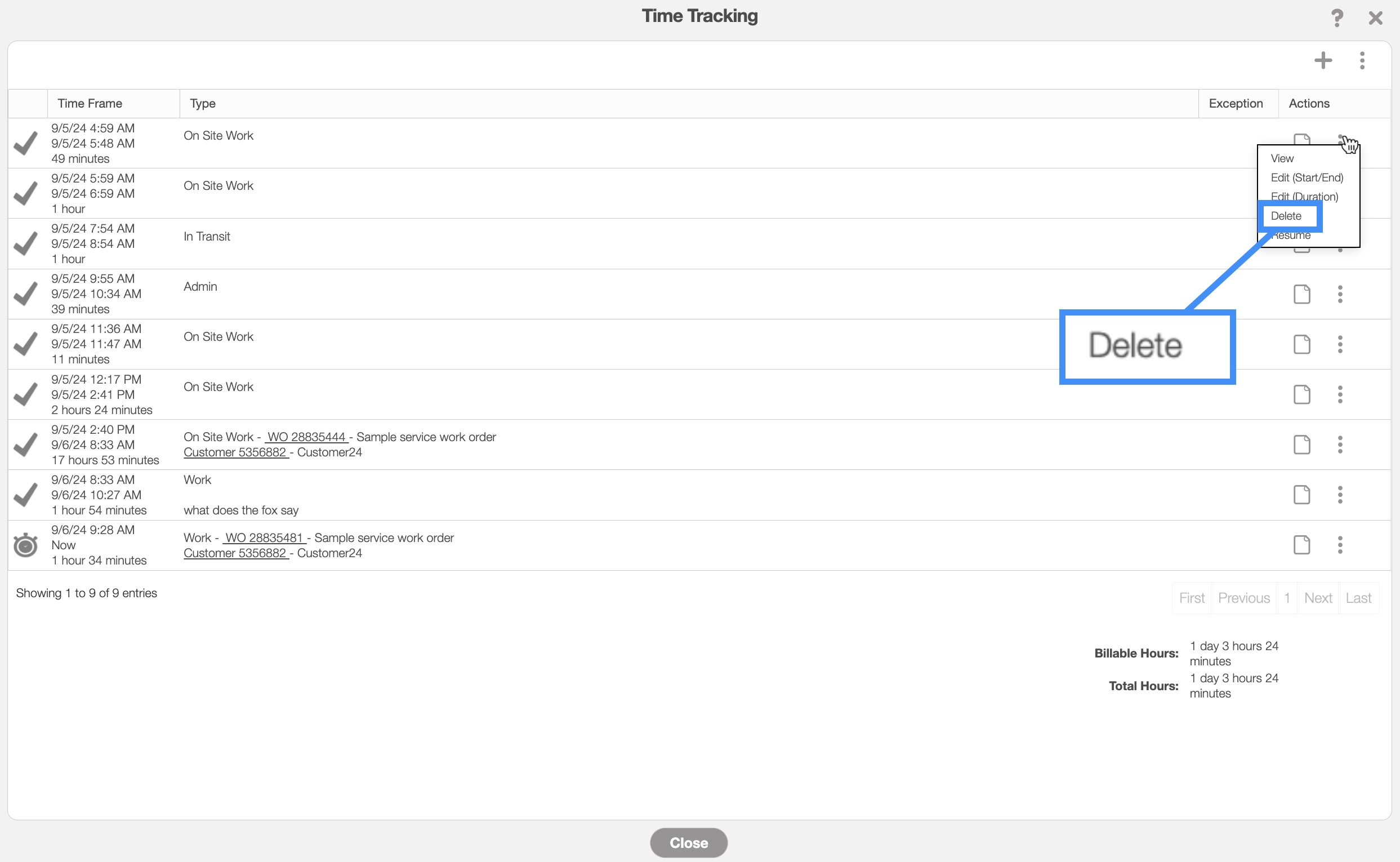
One way to delete a time tracking entry is through the View Time Tracking Entries pop-up window. For more information on how to access this pop-up window, please see the View Time Tracking page.
Once you have opened the View Time Tracking Entries pop-up window, select the "Delete" option from the drop-down:
List Tab
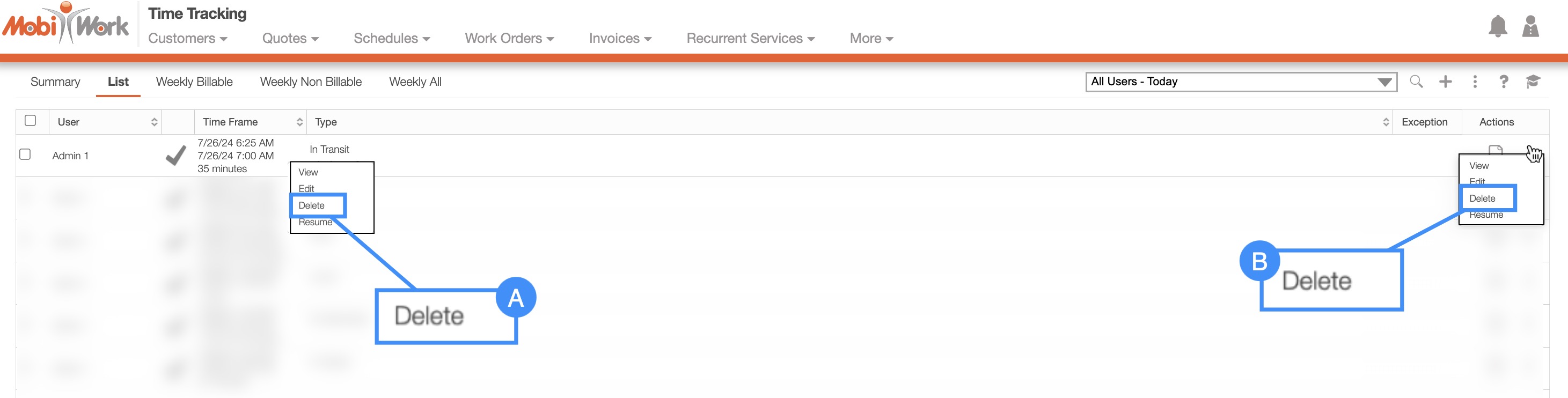
Another way to delete a time tracking entry is through the "List" tab from the Time Tracking feature page. For more information on how to access this page, please see the Time Tracking List page.
online-help.platform.features.timetracking.timetracking_delete_access_list.access1
online-help.platform.features.timetracking.edit.timetracking_delete_access_list.page3
online-help.platform.features.timetracking.edit.timetracking_delete_access_list.page4
Work Orders
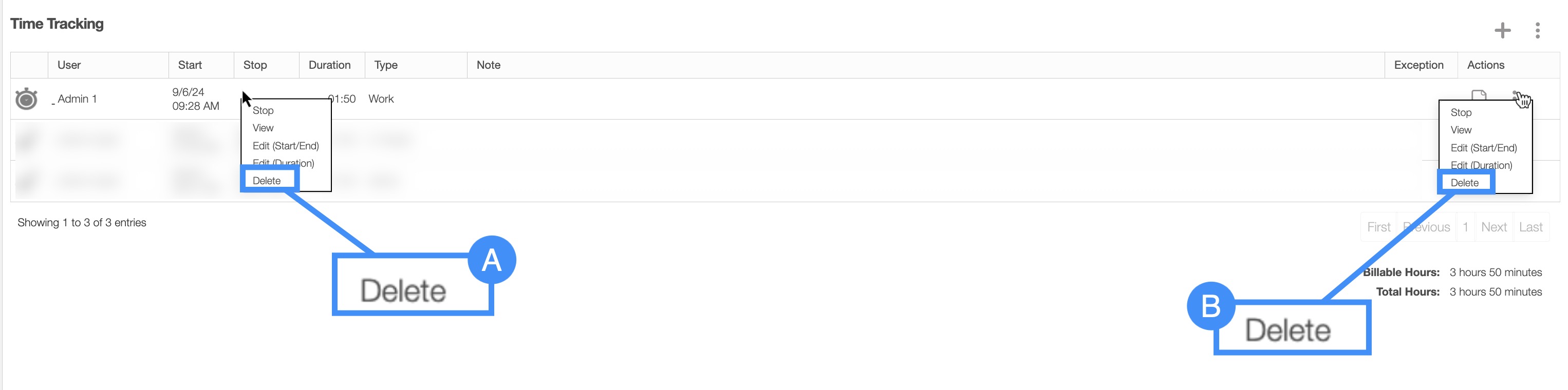
You can also delete a user's time tracking entry through the View Work Order window. For more information on how to access the View Work Order pop-up window please see the View Work Order page.
online-help.platform.features.timetracking.delete.timetracking_delete_access_workorder.page1

online-help.platform.features.timetracking.edit.timetracking_delete_access_workorder.page2
online-help.platform.features.timetracking.delete.timetracking_delete_access_workorder.page5
online-help.platform.features.timetracking.delete.timetracking_delete_access_workorder.page4
online-help.platform.features.timetracking.timetracking_delete_window.paragraph
online-help.platform.features.timetracking.timetracking_delete_window.paragraph1