

There are two different Edit Time Tracking pop-up windows that you can access; the Edit Time Tracking: Duration pop-up window will only allow you to update the start time and date.
The Edit Time Tracking: Start & End pop-up window will allow you to edit the start and end time/date for the user. You will be able to easily tell the difference between the two, as the Edit Time Tracking: Start & End pop-up window will have an extra field to input the end date and time.
There are various ways you can edit the time tracking entry logs for your users. The subsections below will highlight the different ways to access the Edit Time Tracking pop-up window.
Edit Time Tracking Duration
The Edit Time Tracking: Duration pop-up window will only allow you to edit the start time of the selected user.
The subsections below will highlight how to access this pop-up window from the different features in MobiWork.
Right-click on the selected time entry and choose the "Edit (Duration)" option.
Or you can click on the Individual Actions button and choose the "Edit (Duration)" option.
Right-click on the selected time entry and choose the "Edit (Duration)" option. The "Edit (Start/Stop)" option.
Or you can click on the Individual Actions button and select the "Edit (Duration)" option.
online-help.platform.features.timetracking.edit.timetracking_edit_access_entries.header
You can access the Edit Time Tracking: Duration pop-up window from the "Summary" tab of the Time Tracking page. For more information on how to access this page, please see the View Time Tracking page.
The image below will illustrate the different ways to access the Edit Time Tracking: Duration pop-up window from the Time Tracking feature page:
View Work Order Pop-up Window
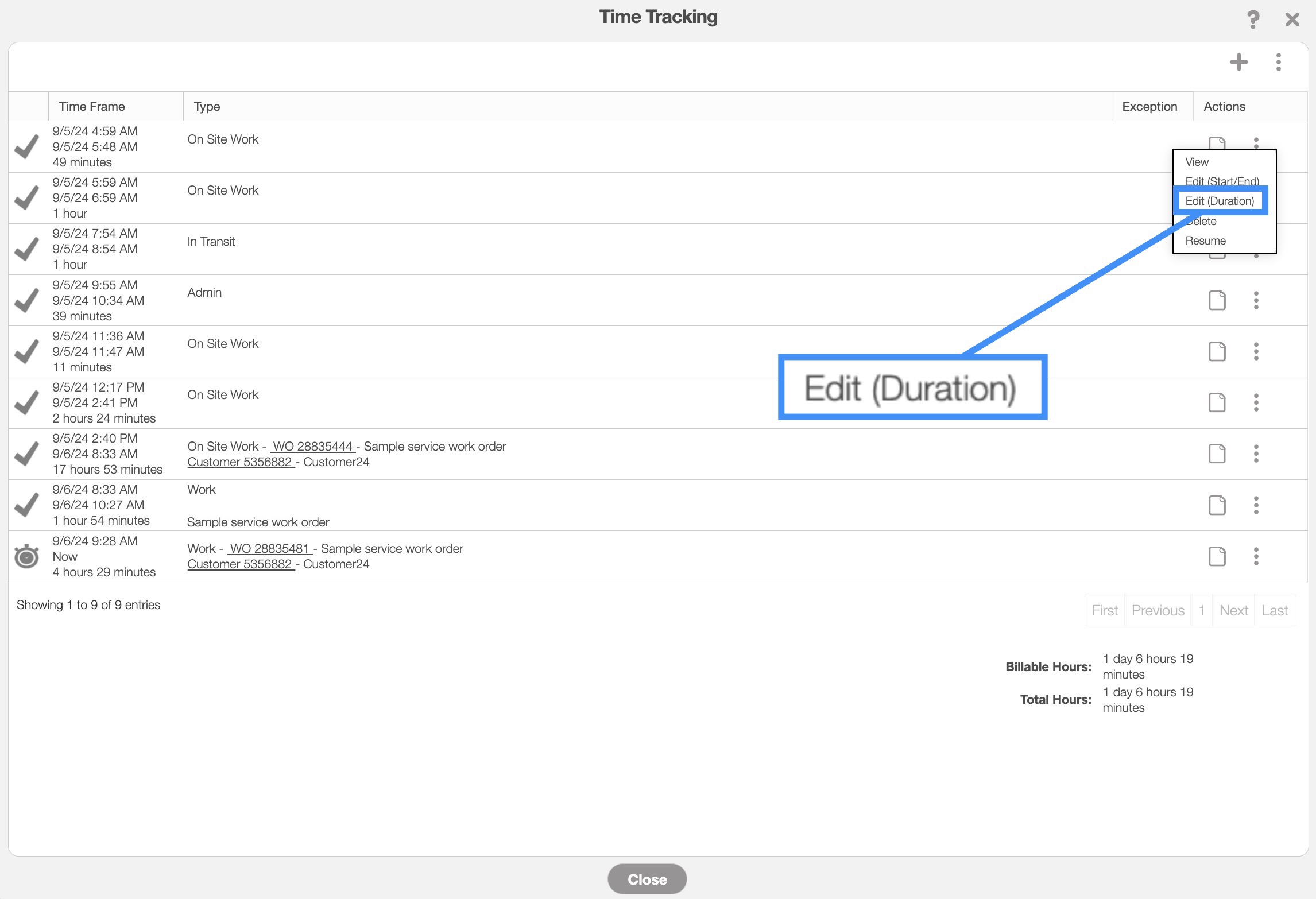
You can access the Edit Time Tracking: Duration pop-up window through the View Work Order pop-up window. For more information on how to access the View Work Order pop-up window, please see the View Work Order page.
Once you open this pop-up window, select the "Job Costing" tab:

All the hours associated with the work order will be displayed in the "Time Tracking" section of the "Job Costing" tab. To edit the user's time tracking duration you can:

Edit Time Tracking: Start & End
The Edit Time Tracking: Start & End pop-up window will allow you to edit the start and end time of the selected user.
The subsections below will highlight how to access this pop-up window from the different features in MobiWork.
online-help.platform.features.timetracking.edit.timetracking_edit_access_list.page3
online-help.platform.features.timetracking.edit.timetracking_edit_access_list.page4
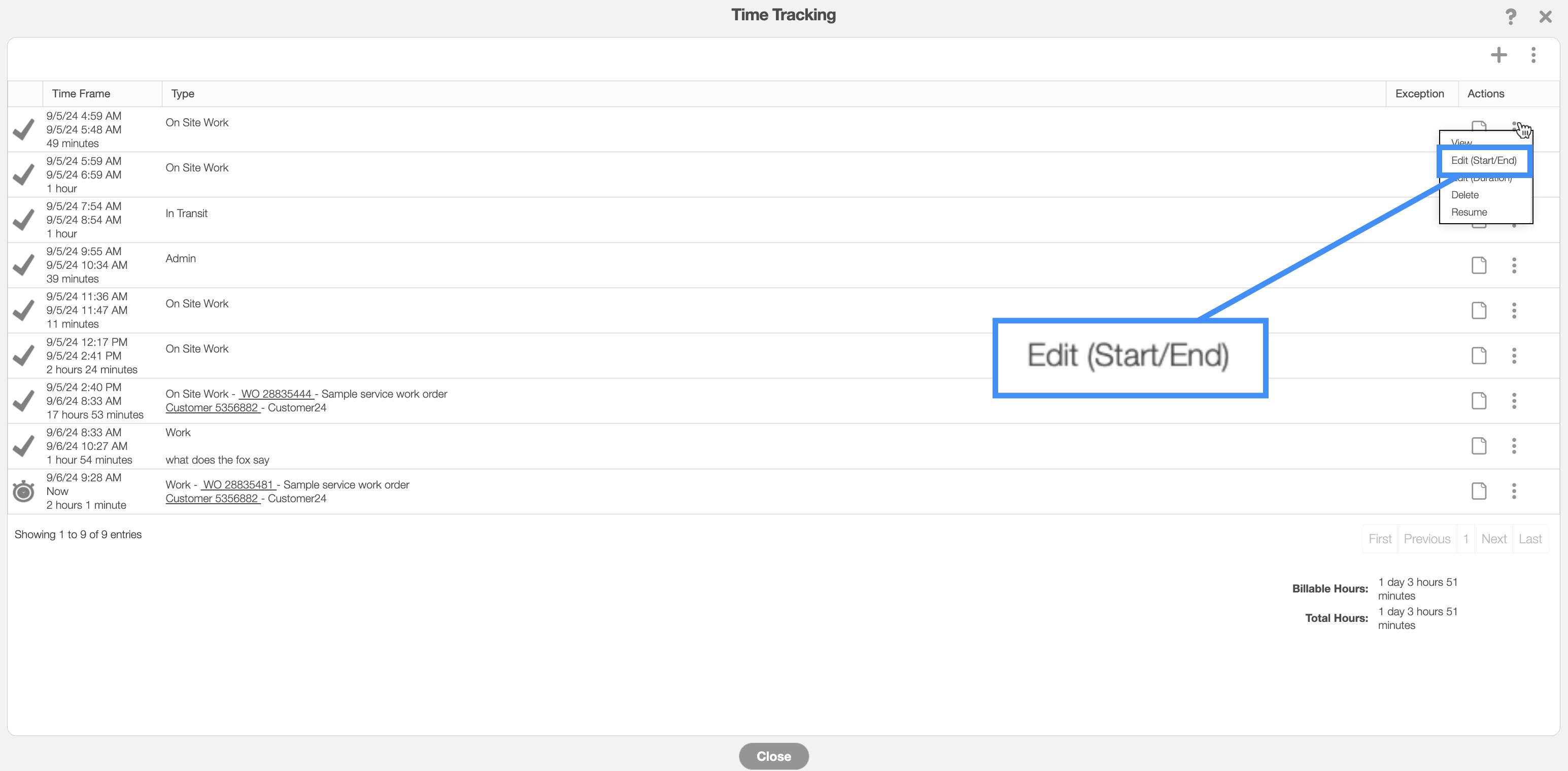
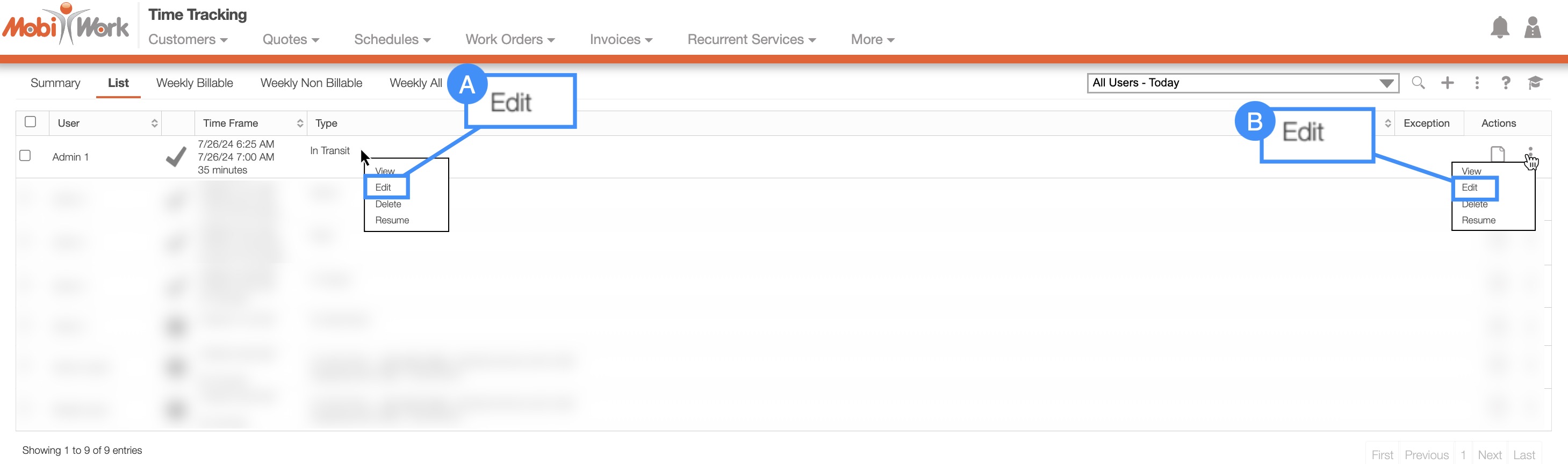
Right-click on the selected time entry and choose either the "Edit (Start/Stop)" option or the "Edit (Duration)" option. The "Edit (Start/Stop)" option will allow you to edit the start and end times of the time tracking activity. The "Edit (Duration)" option. This option will allow you to edit the start time of the time tracking entry.
Or you can click on the Individual Actions button and choose either the "Edit (Start/Stop)" option or the "Edit (Duration)" option. The "Edit (Start/Stop)" option will allow you to edit the start and end times of the time tracking entry. The "Edit (Duration)" option. This option will allow you to edit the start time of the time tracking entry.
online-help.platform.features.timetracking.edit.timetracking_edit_access_entries.header
You can edit the time tracking for a selected user by accessing the View Time Tracking Entries pop-up window. For more information on how to access this pop-up window, please see the View Time Tracking page.
Once you are in the View Time Tracking Entries pop-up window, access the Individual Actions button and from the drop-down, select the "Edit (Start/Stop)" option. This option will allow you to edit the start and end times of the time tracking entry:
Time Tracking "List" Tab
To edit a user's time tracking data, you will first need to be on the "List" tab; for more information on how to access this tab, please see the Time Tracking List page.
online-help.platform.features.timetracking.timetracking_edit_access_list.access1
View Work Order Pop-up Window
You can access the Edit Time Tracking pop-up window through the View Work Order pop-up window. For more information on how to access the View Work Order pop-up window please see the View Work Order page.
online-help.platform.features.timetracking.edit.timetracking_edit_access_workorder.page1
online-help.platform.features.timetracking.edit.timetracking_edit_access_workorder.page2
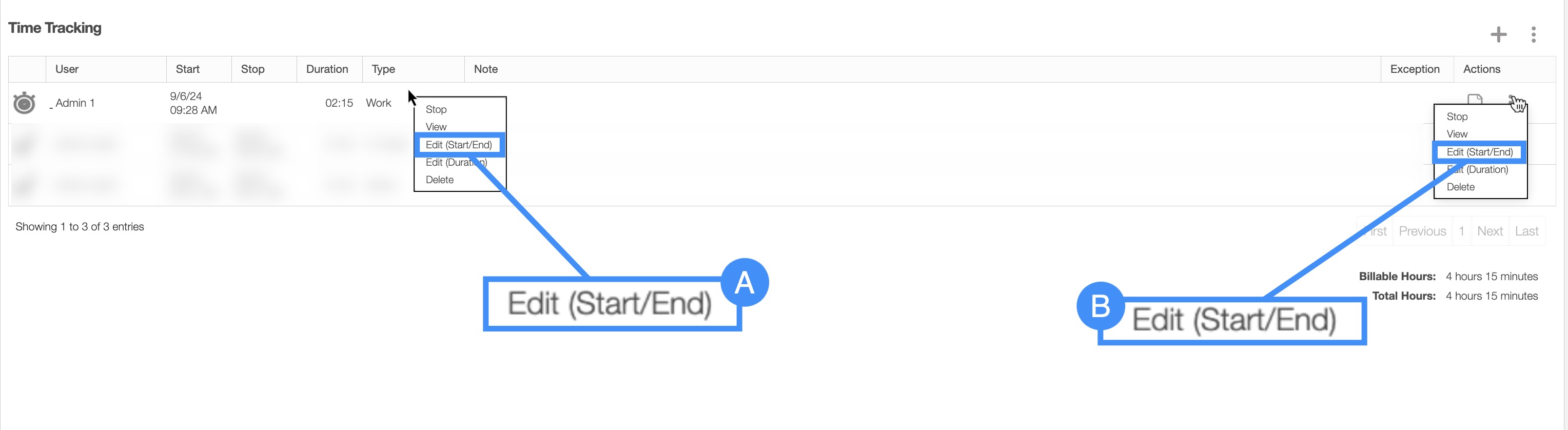
Regardless of the method that you choose to edit a user's time tracking duration, the Edit Time Tracker: Duration pop-up window will appear:
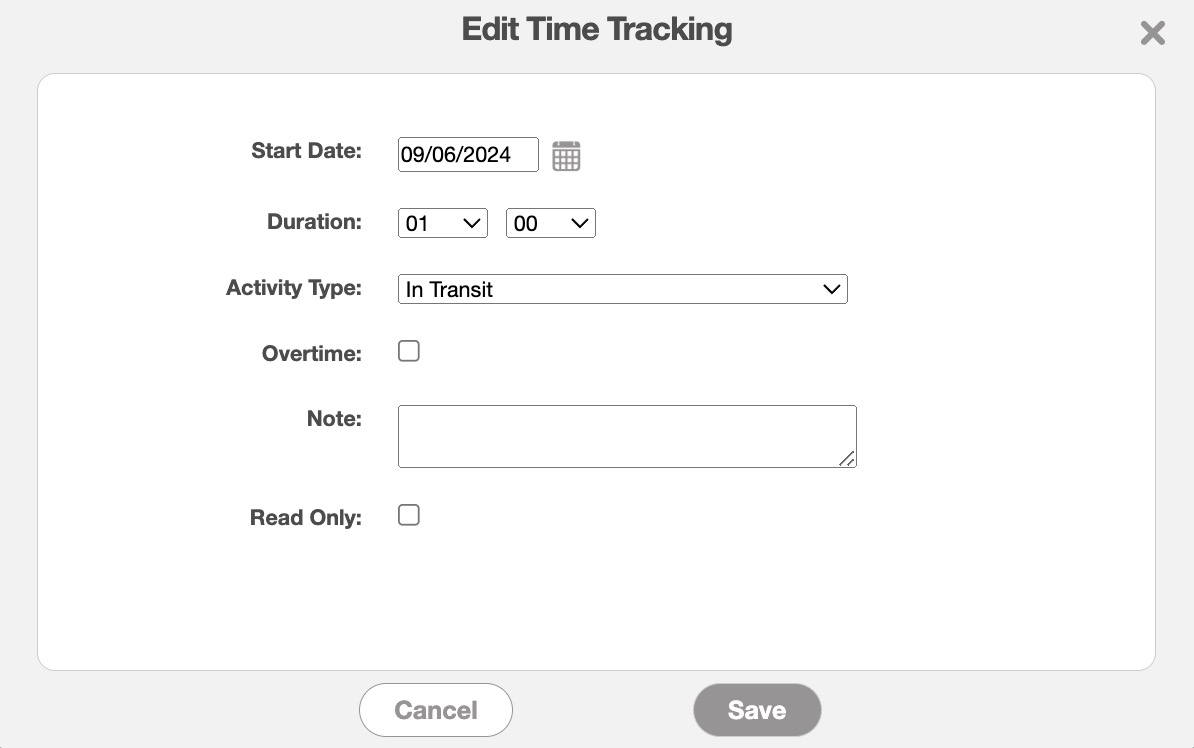
In the Edit Time Tracker: Duration pop-up window, you will be able to update:
online-help.platform.features.timetracking.edit_time_tracking_window.paragraph2
online-help.platform.features.timetracking.edit_time_tracking_window.paragraph4
Mark off if the time constitutes as overtime.
online-help.platform.features.timetracking.edit_time_tracking_window.paragraph5
online-help.platform.features.timetracking.edit_time_tracking_window.paragraph6
online-help.platform.features.timetracking.edit_user_window.paragraph7
online-help.platform.features.timetracking.edit_time_tracking_window.paragraph
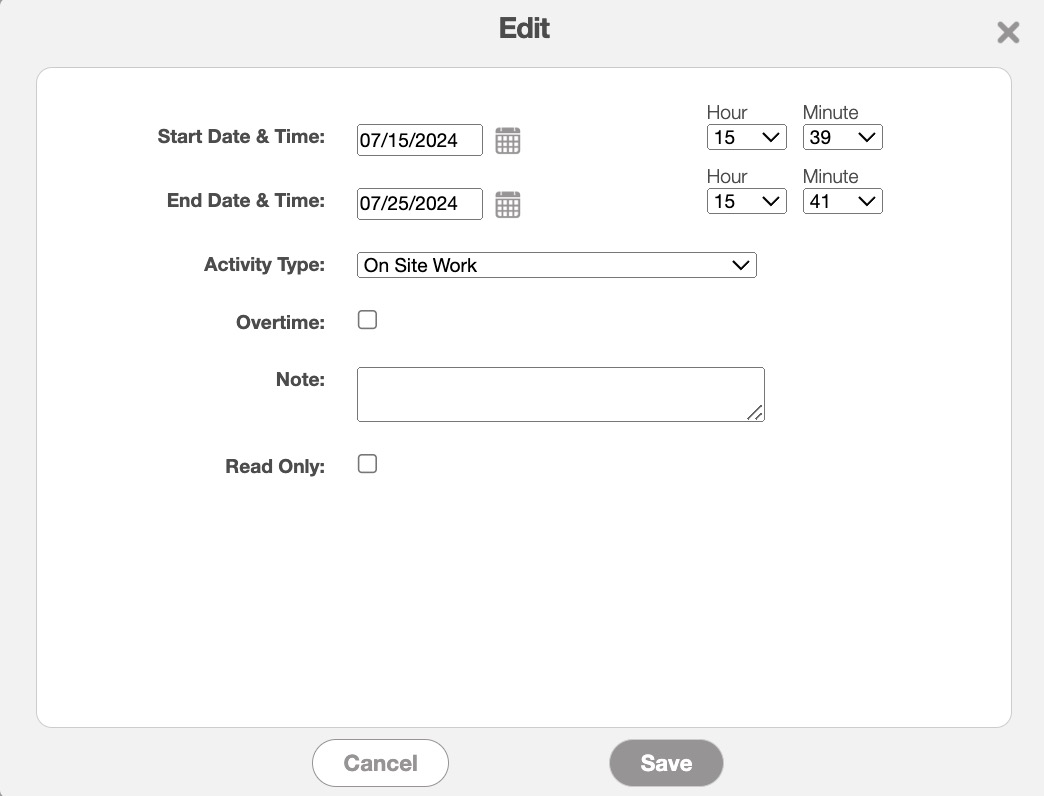
online-help.platform.features.timetracking.edit_time_tracking_window.paragraph1
online-help.platform.features.timetracking.edit_time_tracking_window.paragraph2
online-help.platform.features.timetracking.edit_time_tracking_window.paragraph3
online-help.platform.features.timetracking.edit_time_tracking_window.paragraph4
Mark off if the time constitutes as overtime.
online-help.platform.features.timetracking.edit_time_tracking_window.paragraph5
online-help.platform.features.timetracking.edit_time_tracking_window.paragraph6
online-help.platform.features.timetracking.edit_user_window.paragraph7