

You can convert an asset to a non-serialized asset when you edit the specified asset or add a new asset. To mark the asset as a non-serialized asset, be sure to mark the "Non-Serialized Asset" checkbox:
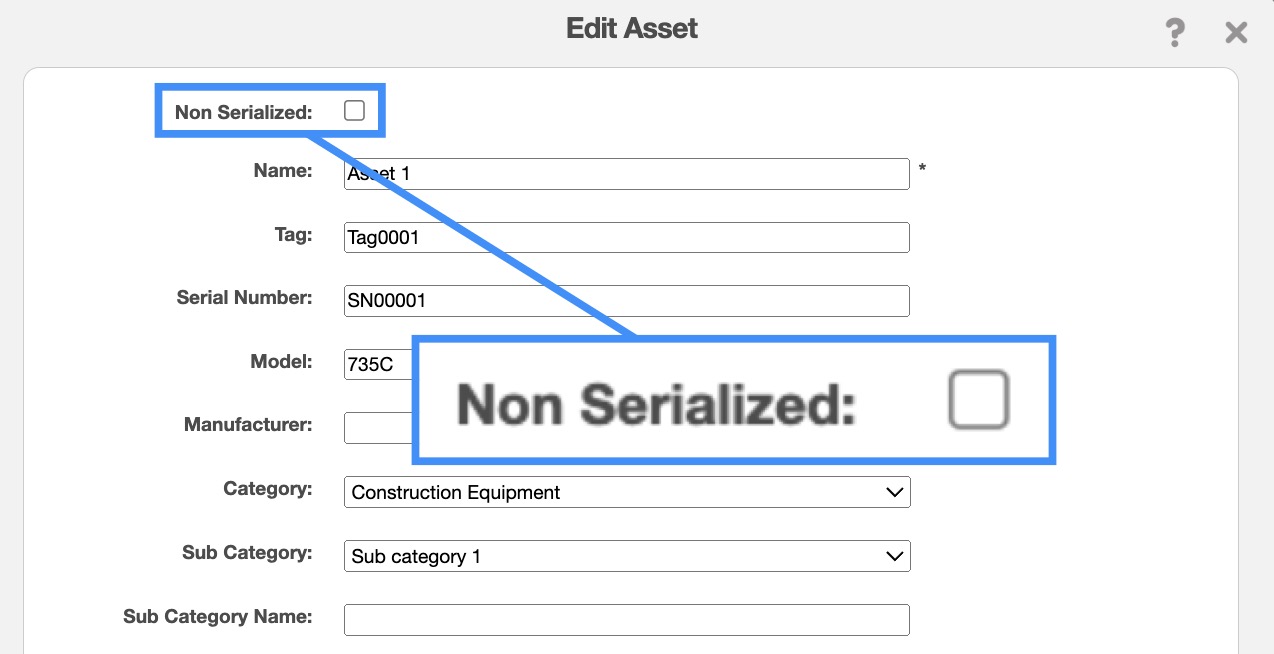
Once an asset is set up as a non-serialized asset, MobiWork will no longer keep track of its unique tag/serial number. Instead, MobiWork will keep track of the quantity available in each warehouse, user and customer. This is especially beneficial when managing large volumes of assets, where tracking individual serial numbers or tags is less useful than knowing the overall quantity available.
For example if you are renting out 5,000 sand bags from your organization it is more practical to track the total number of bags rented, rather than the unique identifier of each individual bag.
Unlike parts, which are permanently consumed once used, non-serialized assets remain in circulation. Thus a non-serialized asset could be rented out to a customer but will ultimately be returned and reused.
Once an asset is converted to a non-serialized asset, you can adjust its warehouse inventory.
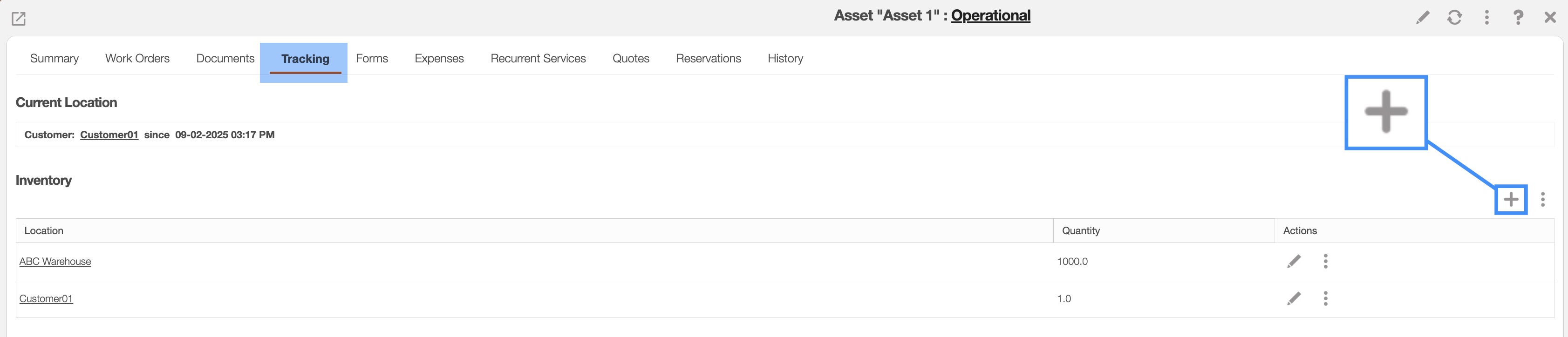
To add the asset inventory to the selected warehouse, first click on the "Tracking" tab from the View Asset pop-up window. Once on this tab, click the Plus Sign icon in the "Inventory" subsection:
The Add Asset Inventory pop-up window will then appear:
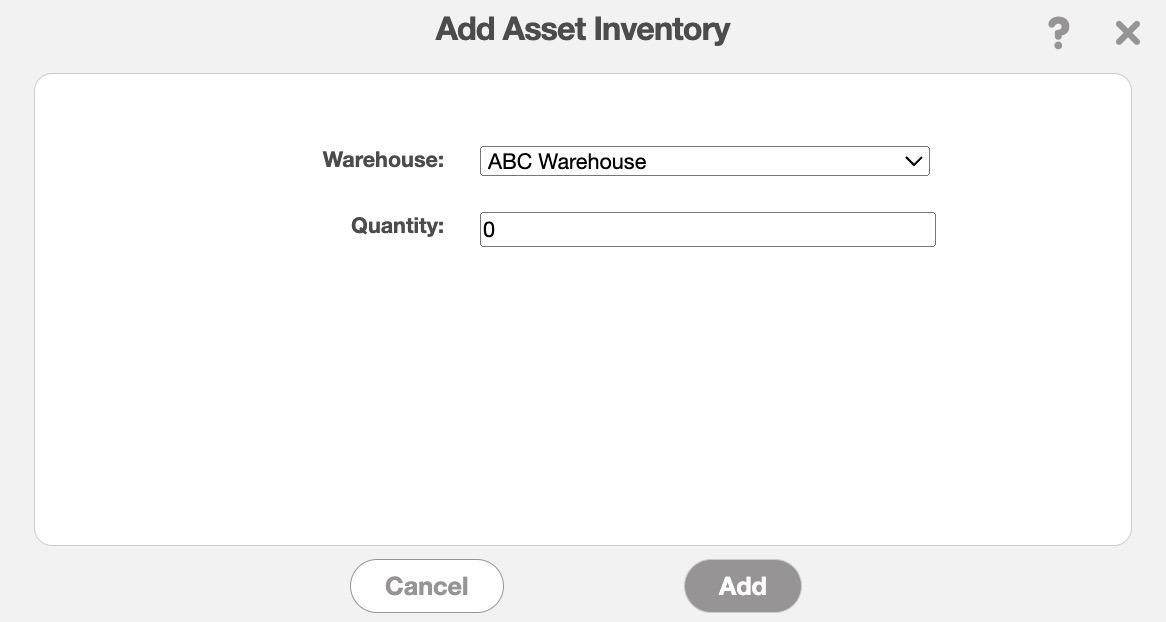
In this pop-up window, select the desired warehouse and then input the asset inventory quantity. Once you are satisfied with the information entered, click the Add button to confirm the updated amount.
To add a non-serialized asset to a work order, you must first select a work order type that has an action for asset delivery.
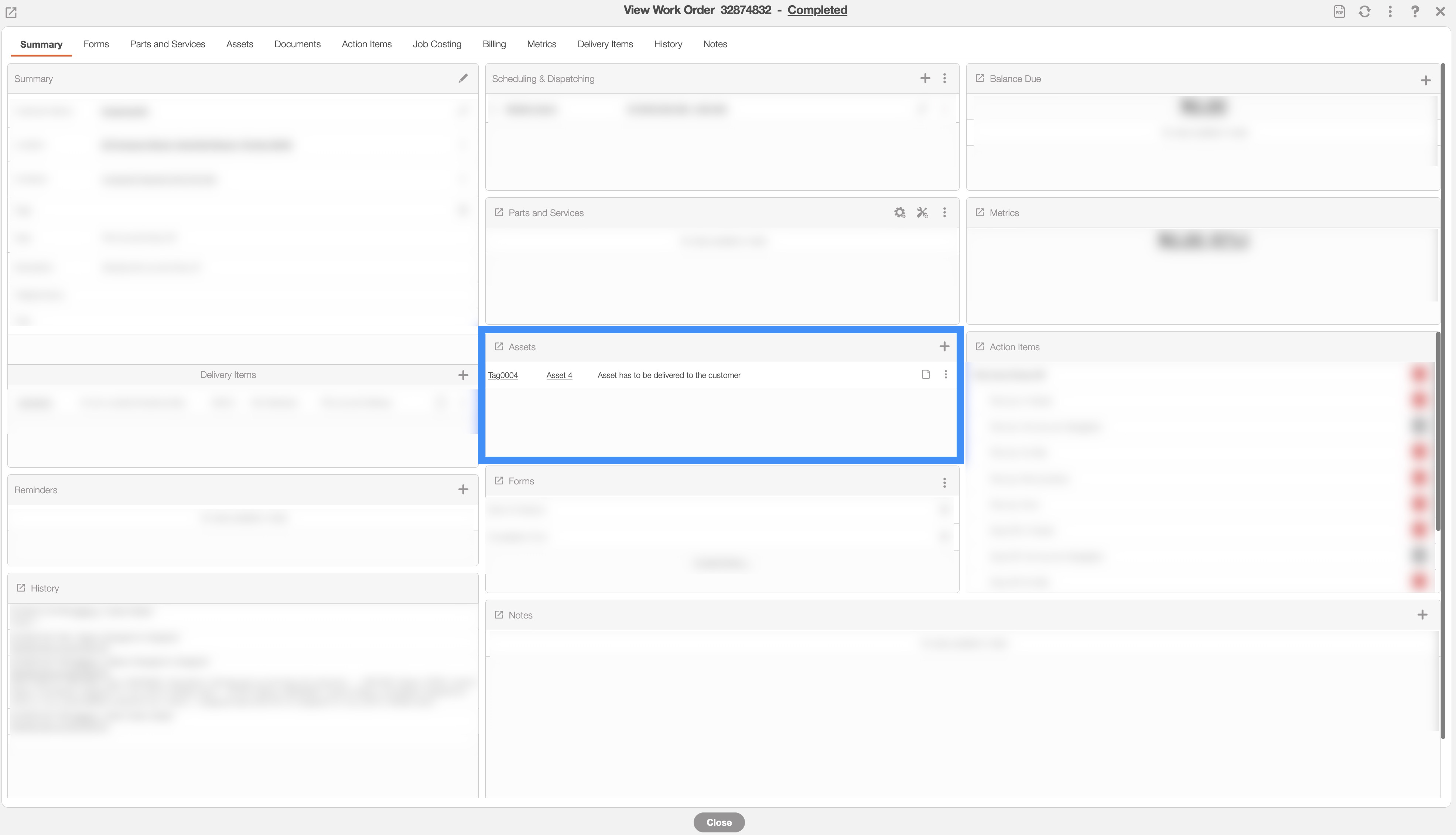
For this example, we will use a "Delivery" work order type. Once the work order has been generated, navigate to the work order's "Assets" panel, and then click the Plus Sign to add assets to the work order:
The Add Asset pop-up window will then appear:
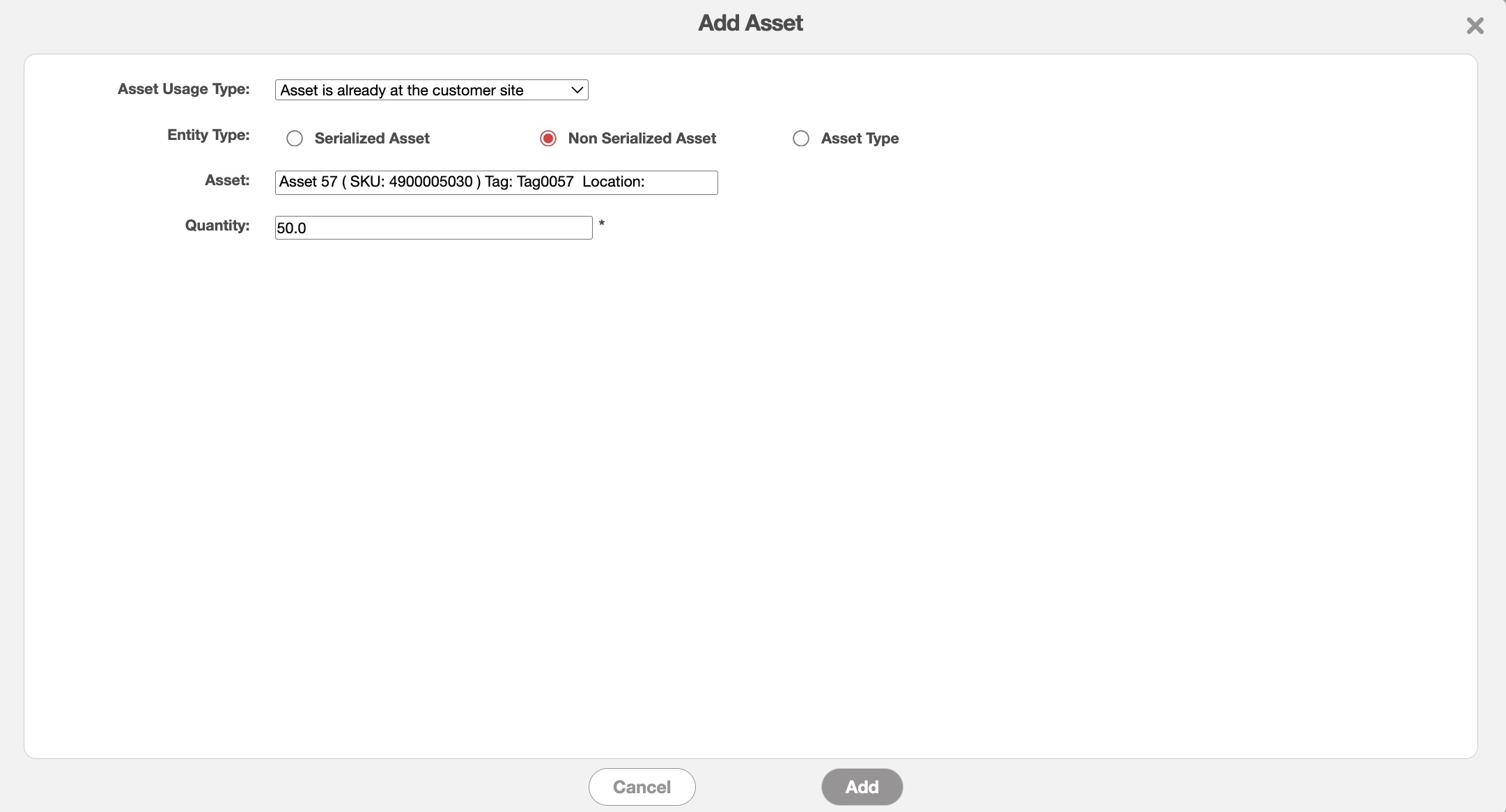
In this pop-up window input the following information:
The asset usage type (i.e., if the asset needs to be delivered at the customer's address, or will be used at the customer's site)
In the entity type selection, click on the non-serialized asset.
Once you select the non-serialized asset from the entity type selection, you can locate the desired non-serial asset by entering the asset's name or entering an asterisk to view the list of all non-serialized assets.
Then input the quantity that will be used for the work order.
Once all the information has been updated, click the Add button. The assets will show on the work order; you can see the quantity and what needs to be delivered.
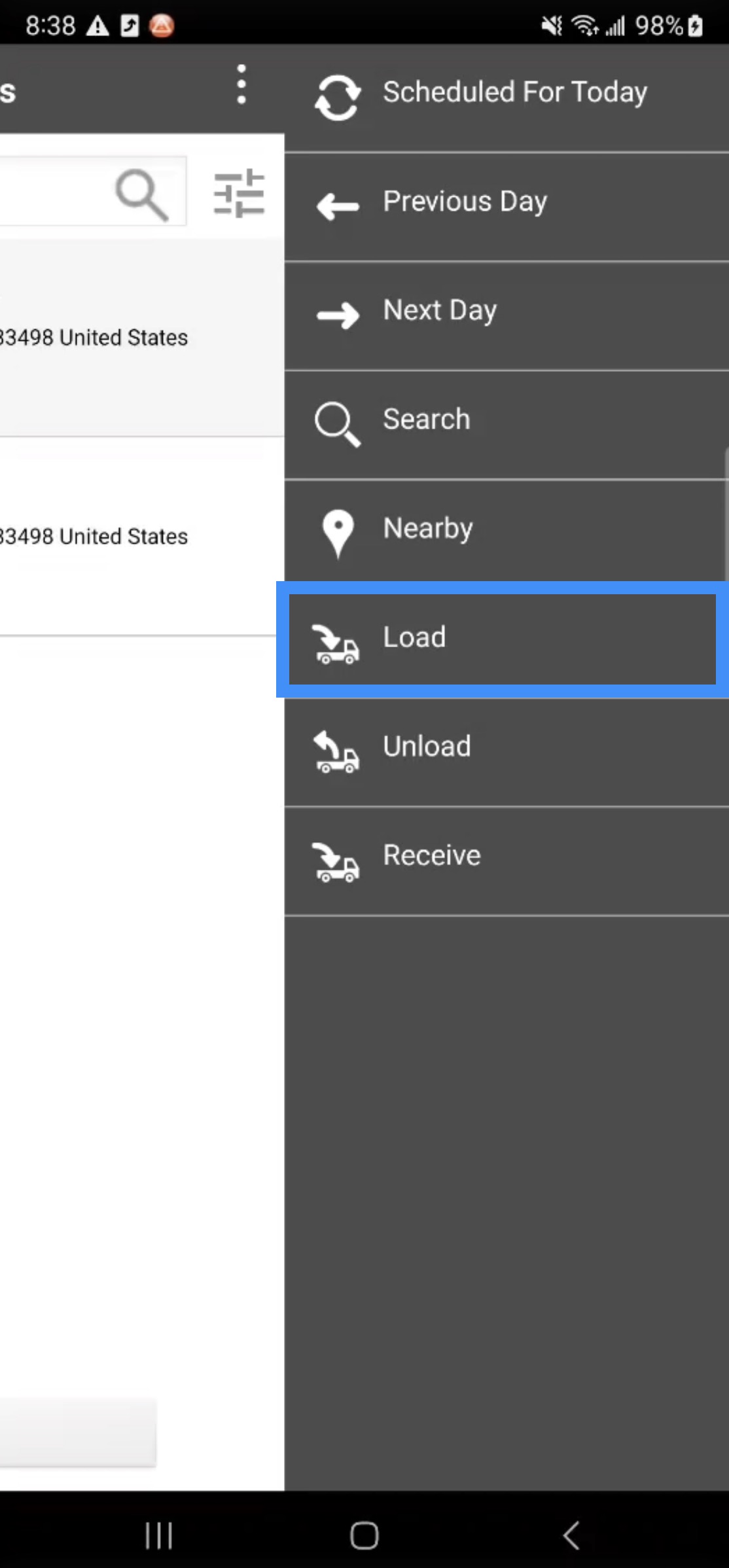
You can load assets from the MobiWork mobile device. To load non-serialized assets from a warehouse, first access the work order List page's Actions Panel and select the "Load" option:
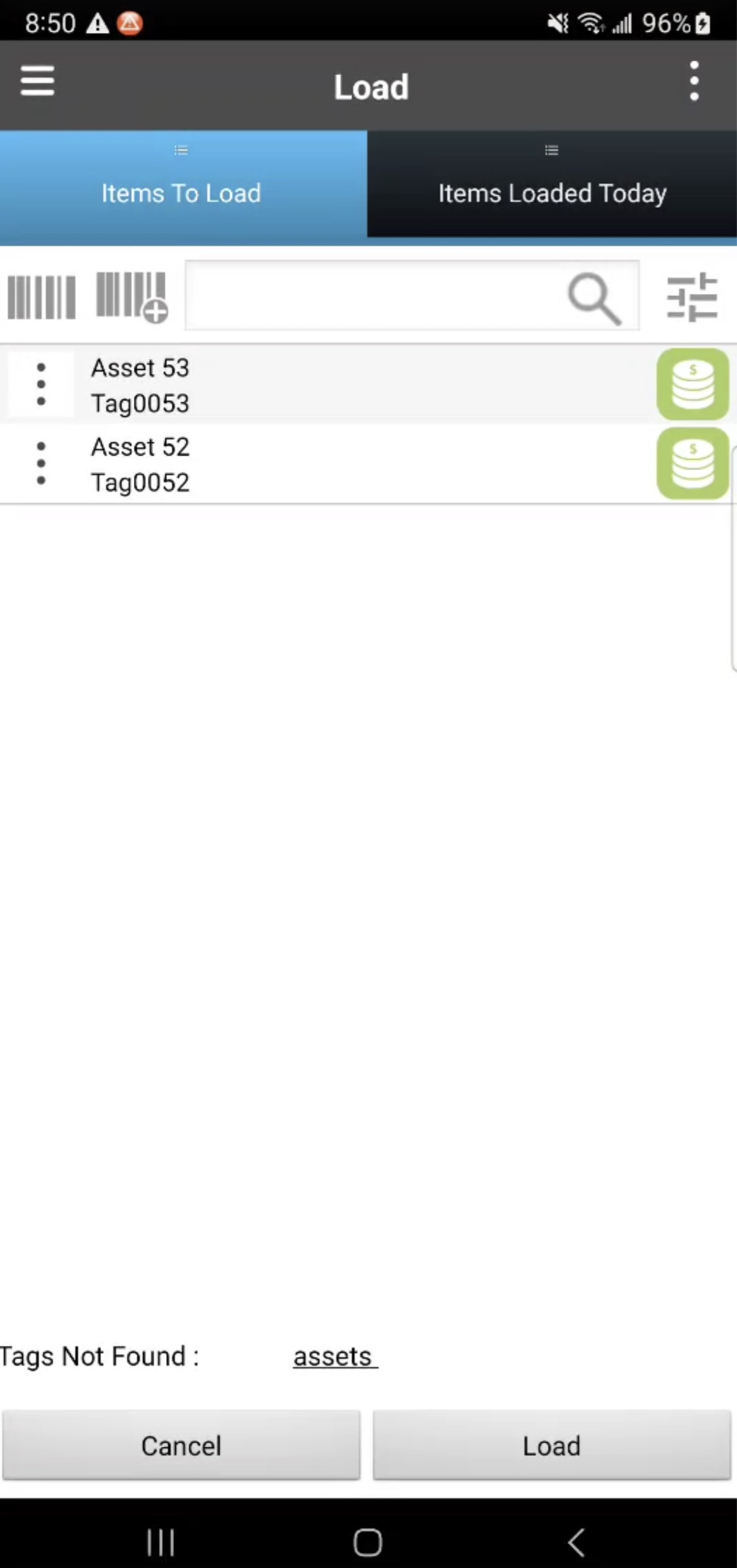
From the "Load Items" panel, the assets that were added to your work orders will be listed. You can also search for the desired asset:
For more information on how to add non-serialized assets to a work order, please see Adding Non-Serialized Assets to a Work Order subsection.
Tap on the desired non-serialized assets (this action will turn the Asset button green). Then click the Load button.
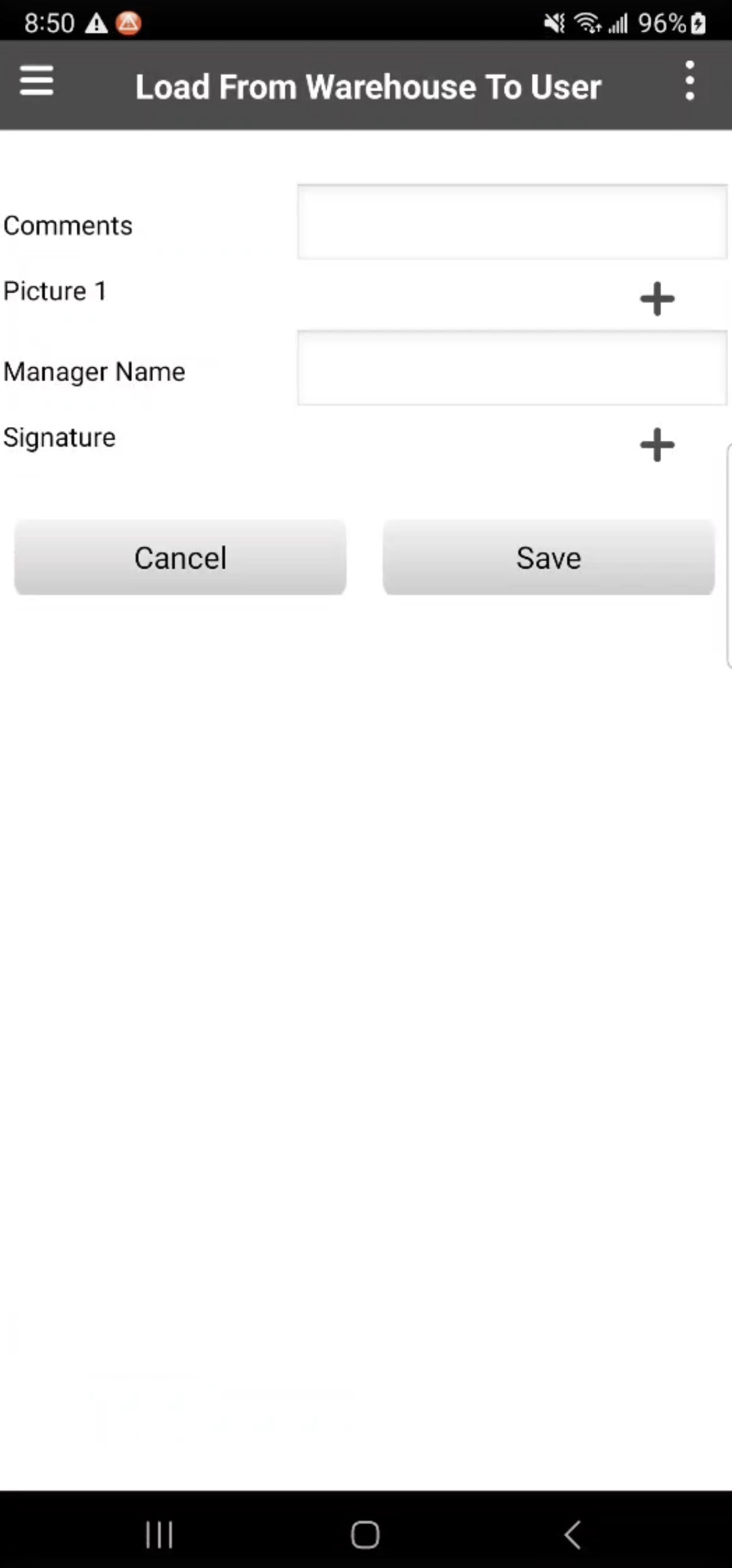
The Load Form will then appear. In this form you can enter notes, take photos, capture signatures or you can ignore these fields and tap Save to continue with loading the asset:
To deliver assets to the customer you will first need to complete the work order Action Items on the device. Once you reach the "Delivery Equipment" Action Item, you will be able to select desired assets that should be delivered to the customer:
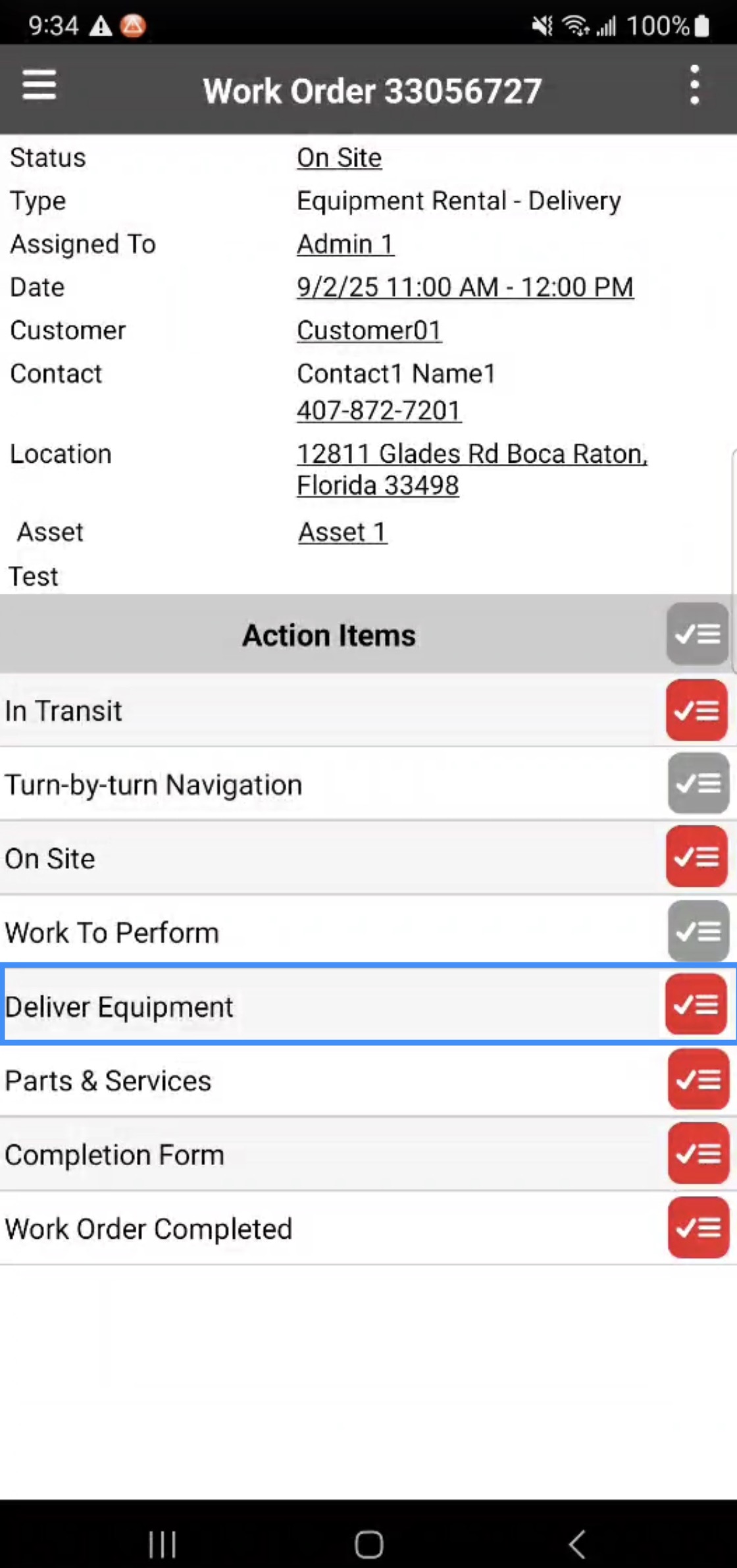
Note: The assets displayed on the Deliver to Customer list will only show the assets that were previously loaded.
Select the desired asset (this action will turn the Asset button green). Once selected, click on the Deliver button.
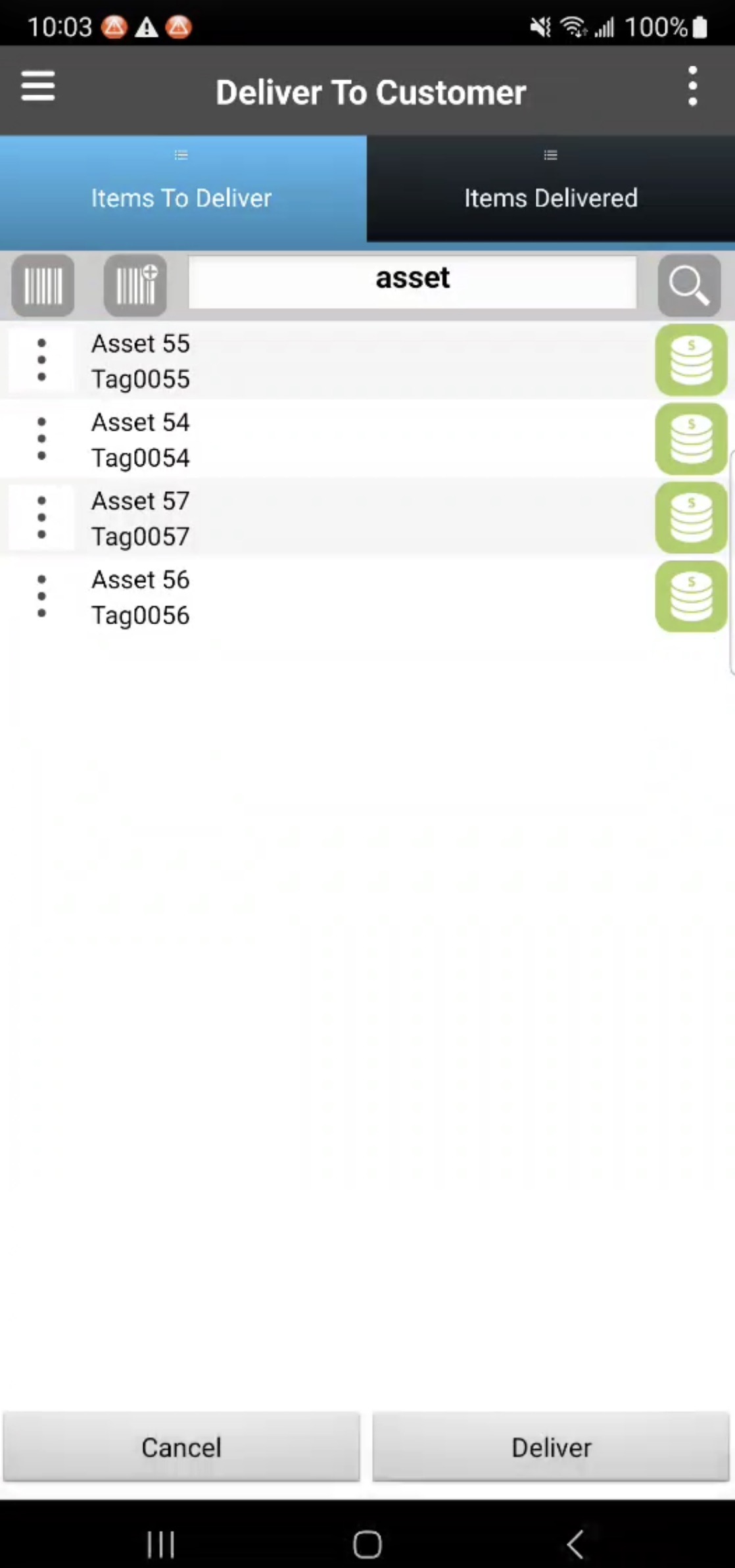
You will see a notification that says, "Successfully delivered the items." Once the assets have been delivered to a customer location, you will be able to view the history on the View Asset pop-up window's "Tracking" tab. On this tab you will see:
Delivery items have moved from the User to the Customer
Under Customer Installations you can keep track of the date the items were delivered. Using a Rental report to track how long items are at the customer site.
You can unload assets from the MobiWork mobile device. When the job is done and the assets have been collected, you will need to unload them so that they can be properly returned to the warehouse.
To accomplish this action, please navigate to the work order List page's Actions Panel and select the "Unload" option:
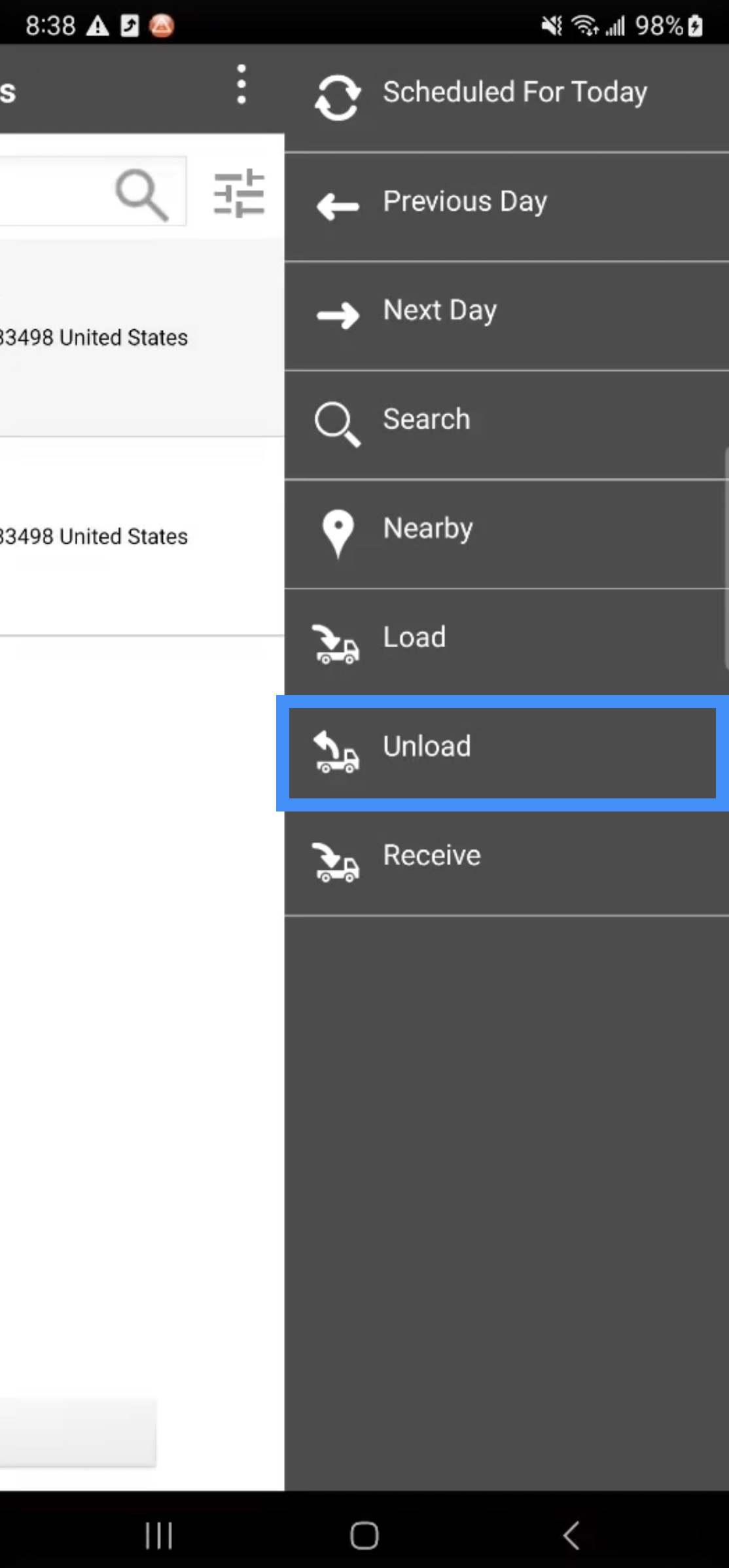
All assets that were collected during day for the listed work orders will be displayed:
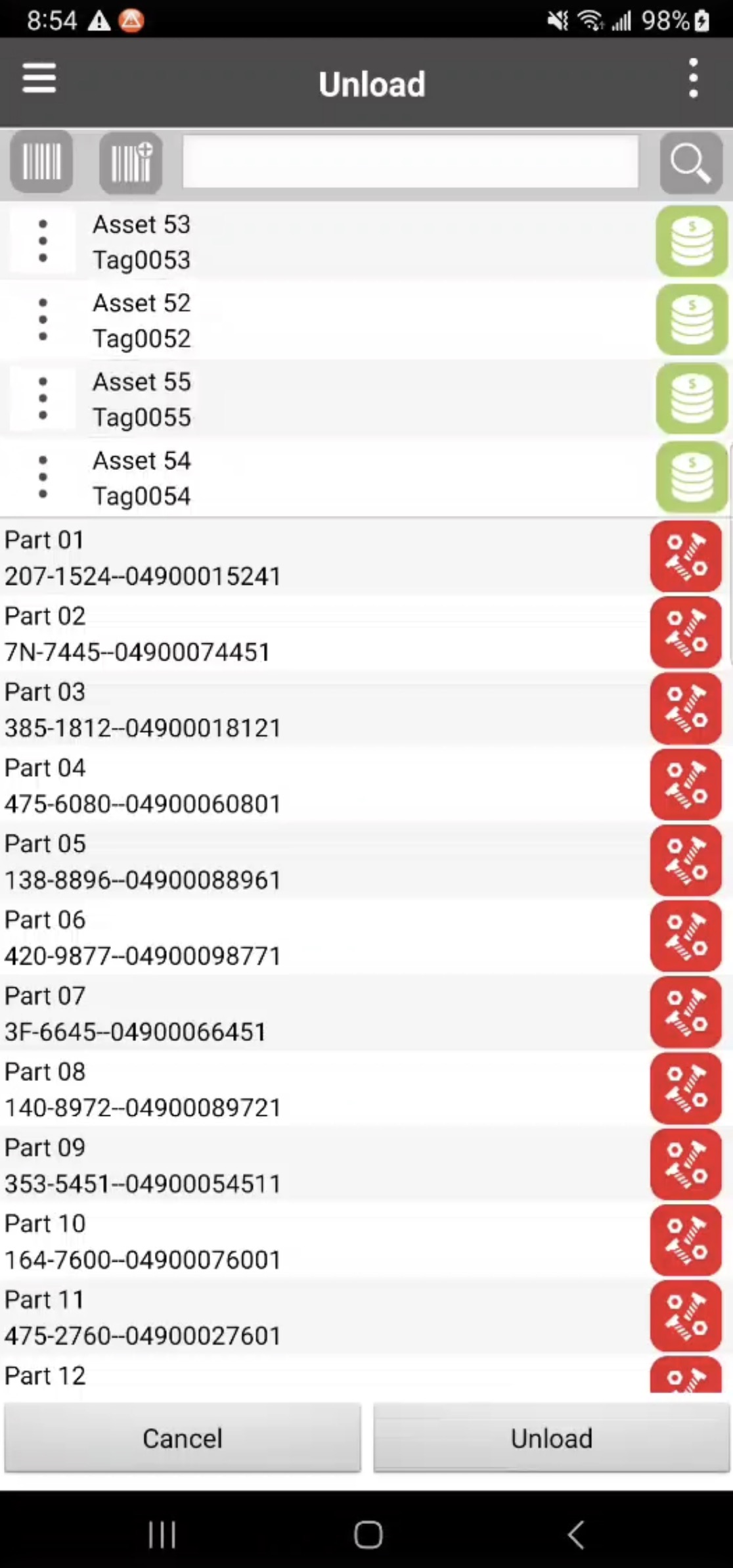
Tap on the desired non-serialized assets (this action will turn the Asset button green). Then click the Unload button:
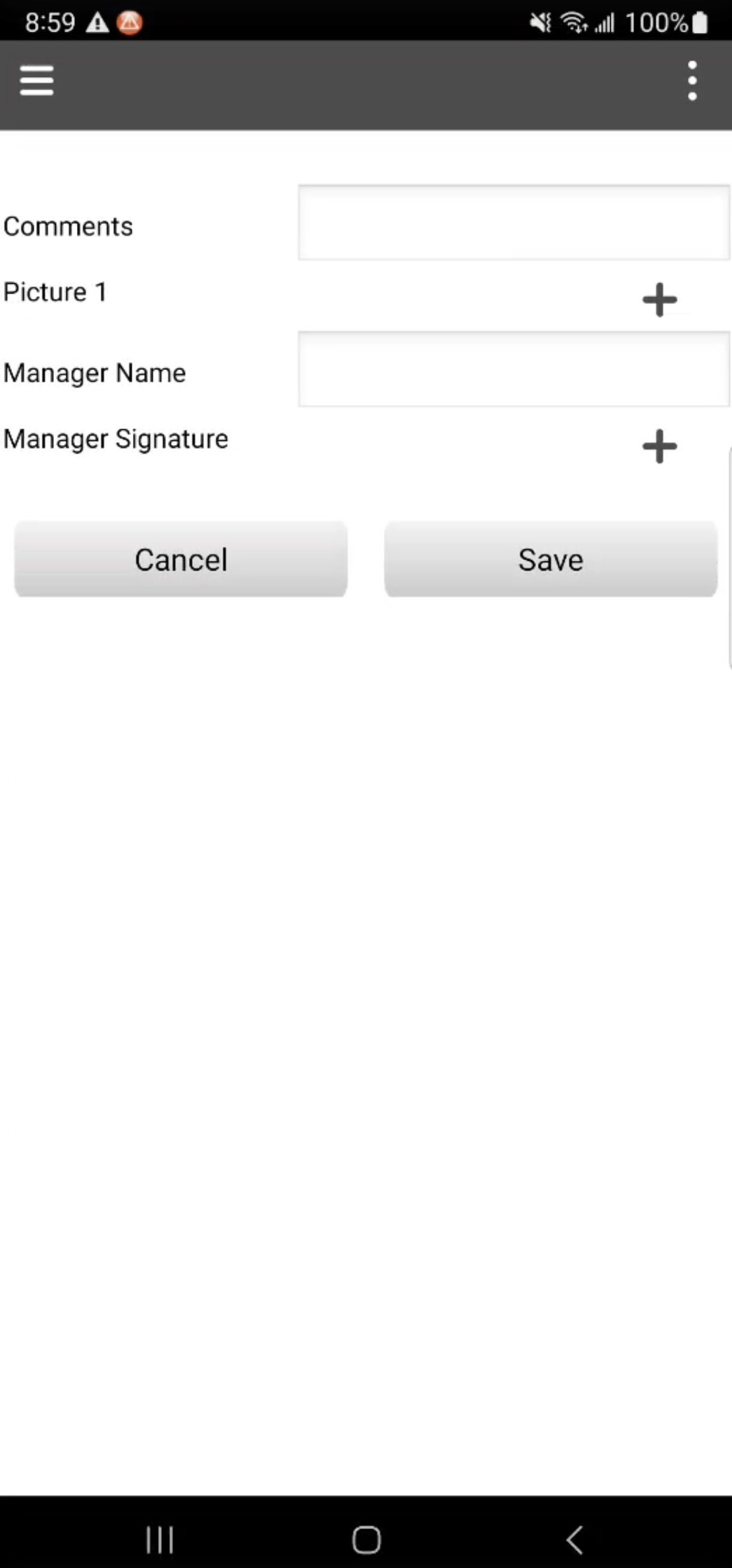
The Unload Form will then appear. In this form you can enter notes, take photos, capture signatures or you can ignore these fields and tap Save to continue with loading the asset.
The selected assets will then be returned back to the warehouse.
You can track the return of the assets on through the MobiWork web interface by navigating to the "Tracking" tab on the View Asset pop-up window. View of Delivery Only and Final Pickup Work Orders on the device:
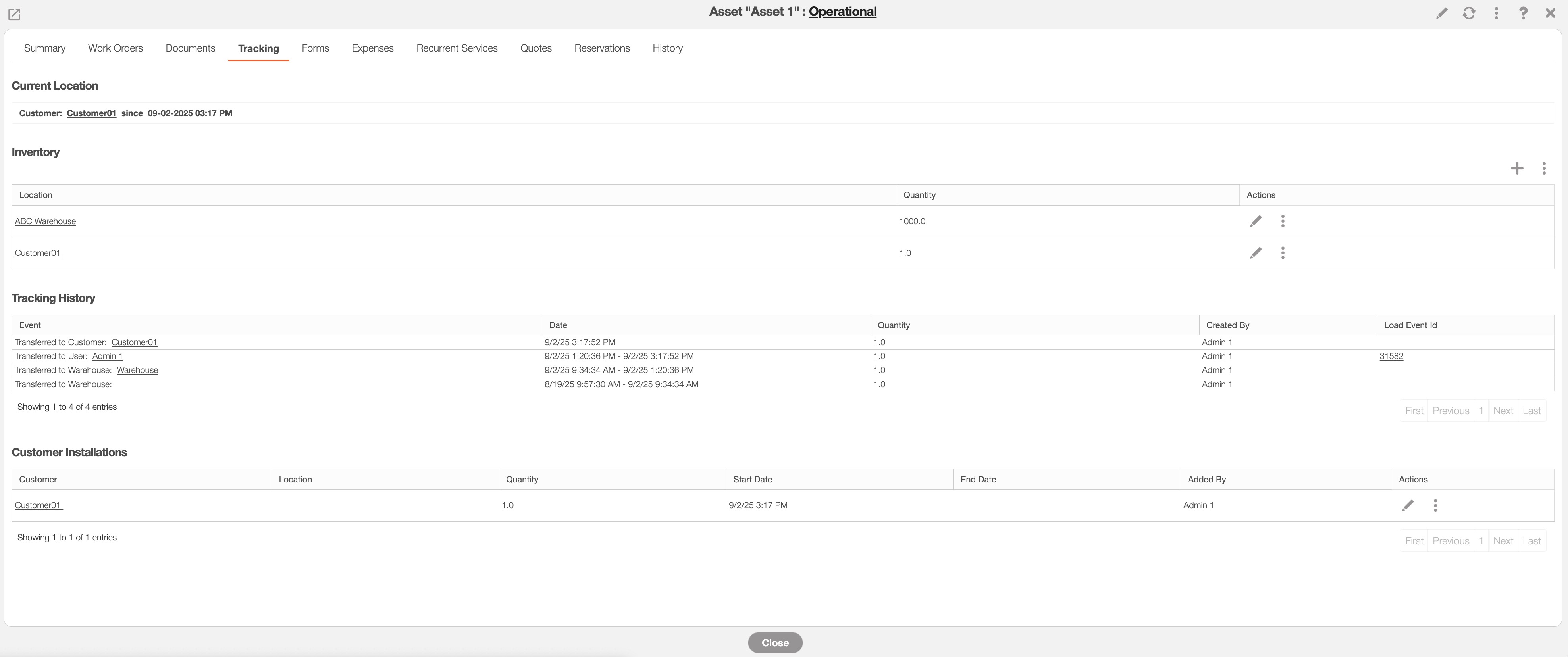
Whenever you load or unload assets, you can view their tracking movements through the MobiWork web interface. To view the tracking history by navigate to the "Tracking" tab on the View Asset pop-up window:
To retrieve assets from the customer you will first need to create a pick-up work order. Once the appropriate work order has been created you will be able to retrieve the rented assets.
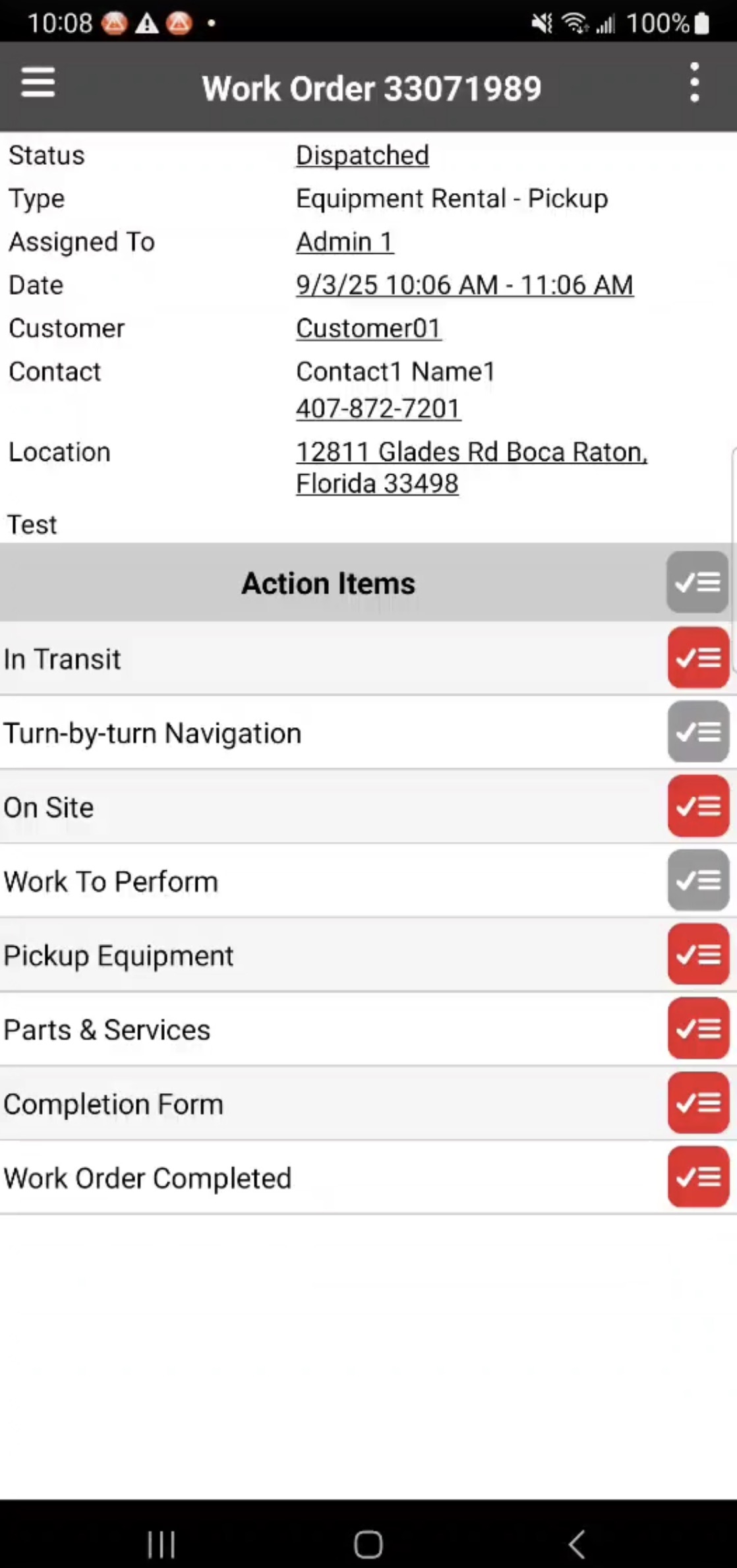
Complete the work order Action Items on the device. Then, once you reach the "Pick Up Equipment" Action Item, you will be able to select desired assets that should be collected from the customer:
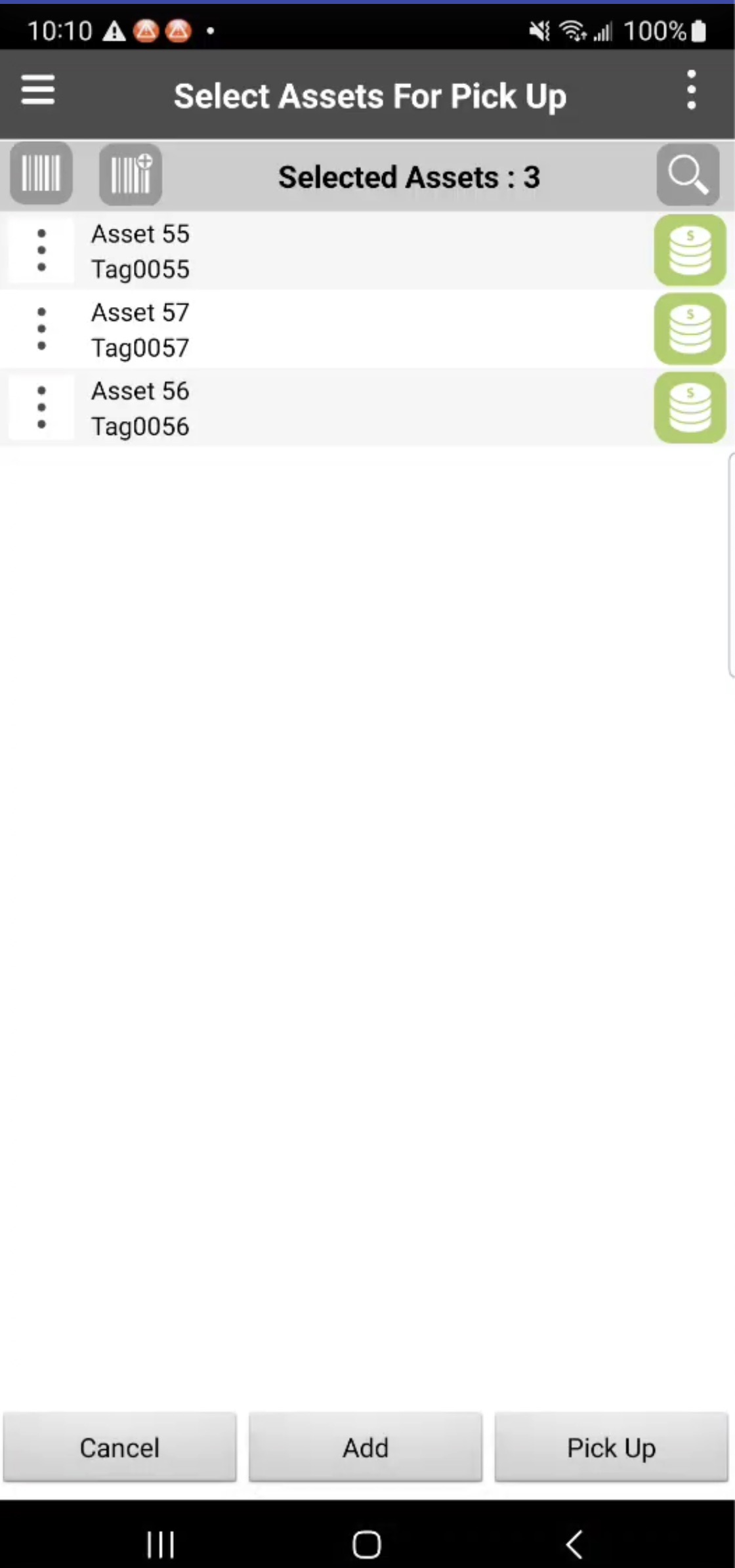
Select the assets that will be retrieved from the customer (this action will turn the Asset button green). Then tap on the Pick Up button. A notification that says "Successfully loaded the items" will then appear confirming that the assets have been loaded.
Once the assets have been retrieved from a customer location, you will be able to view the history on the View Asset pop-up window's "Tracking" tab. In this history you can see which assets are with you and under the "Customer Installations," you will be able to see the Start and End dates for the asset rental.