

The customer requests feature allows you to send and receive requests from prospective customers. Please contact us for help in setting up the link for your customer request form.
These requests can be submitted through your website or through social media, thus giving clients a convenient way to reach you anytime:

A request can be submitted for either a work order or a quote. While customers may suggest preferred dates and times, these requests are not directly tied to your company's schedule or dispatching. This ensures that you retain full control over when a work order is scheduled and dispatched.
Internal customer requests can also be created by your users. To add a request simply navigate to the Customer Request List page and click on the Plus Sign:

By gathering customer needs and preferences upfront, the Customer Requests feature streamlines communication and helps you respond more effectively.
Note: Please note that this feature is not configurable or accessible from the MobiWork mobile app. However, it can still be completed on a mobile device by opening and using the provided URL in a browser.
You will be able to customize the request header and text as well as add additional fields to the "Request Details" section. If you would like to adjust the header, text, or add additional fields, please contact us:
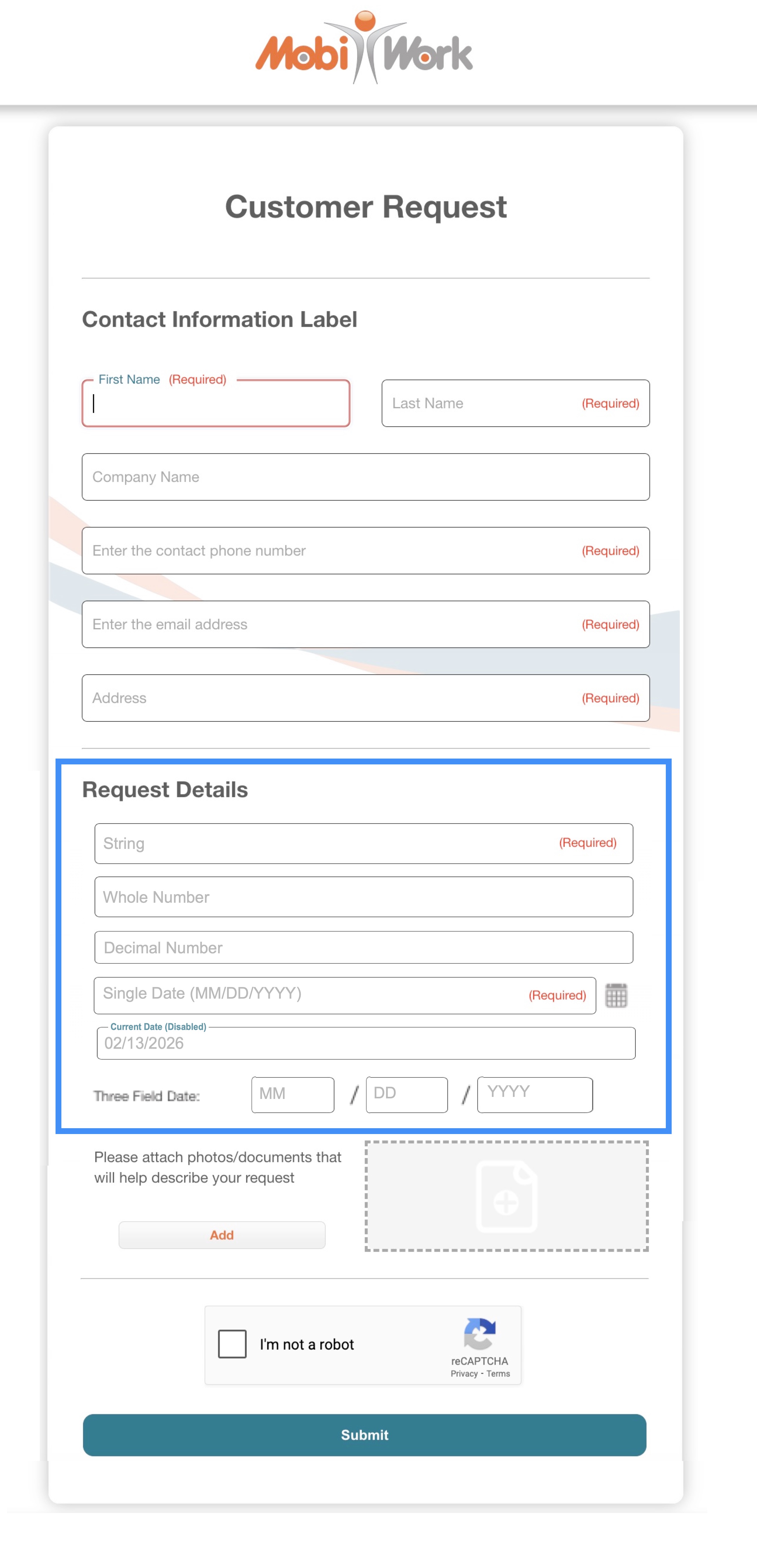
If a customer request has been submitted and the customer is not in your system, you can either associate the contact with an existing customer or create a new one.
First, we will explore how to associate the requesting contact with an existing customer.
To associate the contact with an existing customer, you will first need to open the View Customer Request pop-up window. Once you open the pop-up window, click on the Individual Actions button from the "Summary" panel:

From the drop-down select the "Associate to Existing Customer" action to associate the customer contact with the existing customer.
Note: This action only associates the contact from the customer request; it does not create a parent-child customer relationship or copy the contact's information to the customer profile.
To remove the association between the contact and the existing customer, follow the same steps. The "Associate to Existing Customer" option will now appear as "Remove Customer Association." Selecting this option will unlink the contact from the customer.
Now, let's explore how to add a new customer from the contact request. In the "Summary" panel's Individual Actions button, select the "Add New Customer" action from the drop-down:

This action will open the Add Customer pop-up window, allowing you to input the new customer details:
