
When dispatching a work order, you will now notice that the View Dispatch pop-up window has been updated to a more modern, sleek design. The image below shows the single user dispatch mode:

You will still have access to the same key information, including:
Your preferred dispatching mode
The users you wish to assign to the work order
the scheduled date and time, time zone, as well as the estimated duration for the work order.
The Filter icon next to the "Dispatching Mode" drop-down will allow you to further refine the list of users shown in the View Dispatch pop-up window:

By clicking on this icon, the Filter Users pop-up window will appear. In this window, you can prevent certain users or groups from appearing in the dispatch window:

In the "Proposed Schedule Change" panel, you will be able to visualize where the new work order will be placed on the user's timeline. Once finished, you can click on the Dispatch button to submit the dispatch request.
Note: If the account has more than 75 users, a user lookup field will be displayed instead of a drop-down list. Please contact us if you need this threshold adjusted to exceed 75 users.

The following subsections will highlight how the different dispatch modes will appear with the new UI. For more information about dispatch modes, please see the Dispatching Modes page.
The example below shows the Multiple Users dispatch mode:

The example below shows the User Last Known Location dispatch mode:

The user hyperlink will direct you to the user profile.
The example below shows the Base Location dispatch mode:

The user hyperlink will direct you to the user profile. Only the crew leader's phone number will be displayed.
The example below shows the Closest in a Given Day dispatch mode:

The example below shows the Closest in Closest in 7 days dispatch mode:

The example below shows the Closest in Closest in 30 days dispatch mode:

The Contractor Dispatch feature helps determine the best contractor to assign to a given job:

To use this feature, the contractor field must be enabled on your account. MobiWork also provides workflows that allow you to accept or reject contractor assignments. For more information about workflows or setting up contractors in your account, please contact us.
A crew consists of multiple users who can be dispatched to assigned work orders or projects. Crews can be reused on a recurring basis and can include a designated crew leader or supervisor. When a user is part of a crew, they will no longer be displayed as an individual user in the View Dispatch pop-up window or in the schedule; instead the crew name will be displayed:
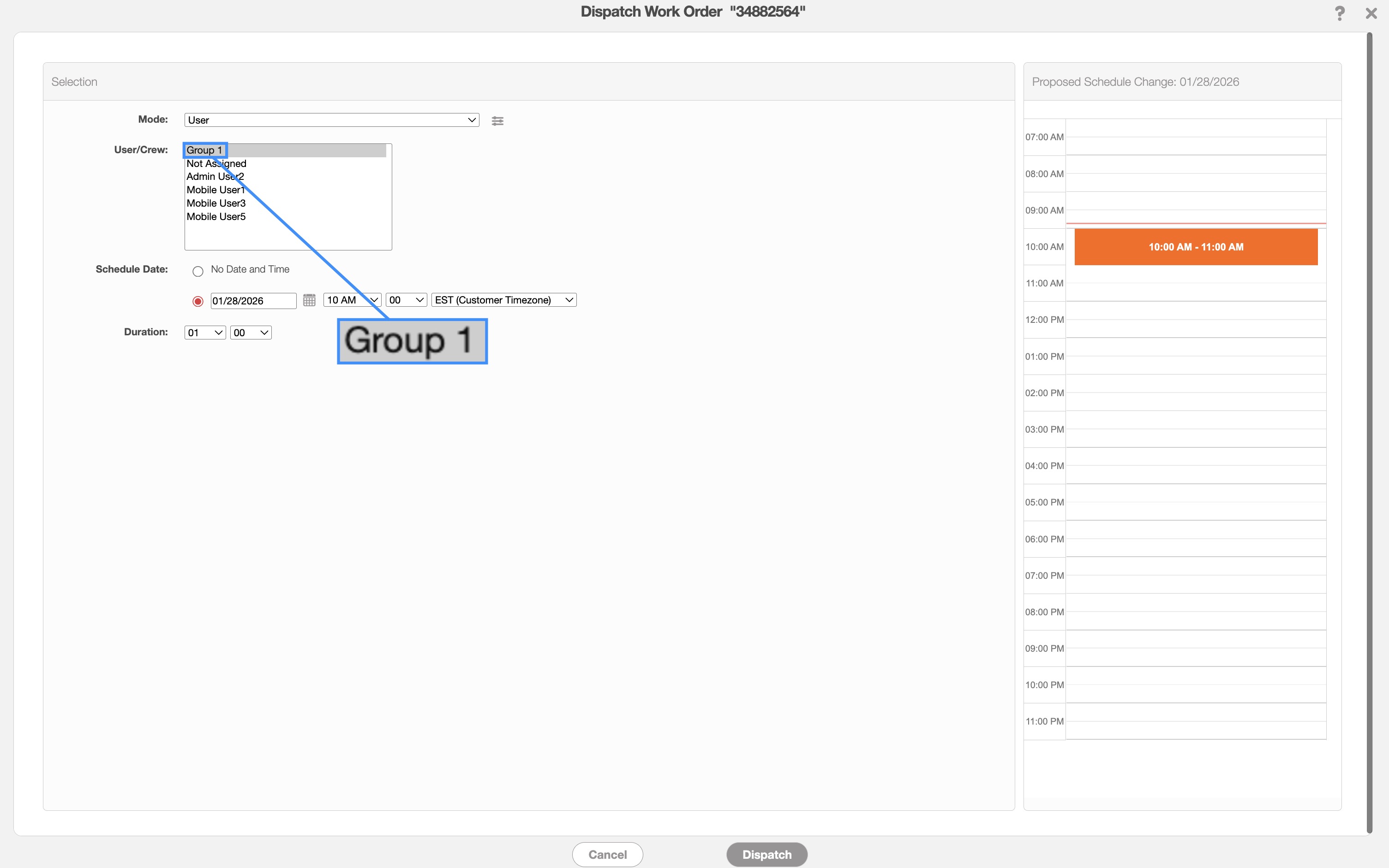
Note: Please contact us to properly set up your crew dispatch functionality in your MobiWork account.
You can see the dispatched crew visually through the Schedule feature by selecting the designated crew from the user drop-down list:

As you can see from the image below, the users that consist of the group will be removed from the "Calendar" view. Instead, the crew they belong to will be displayed:
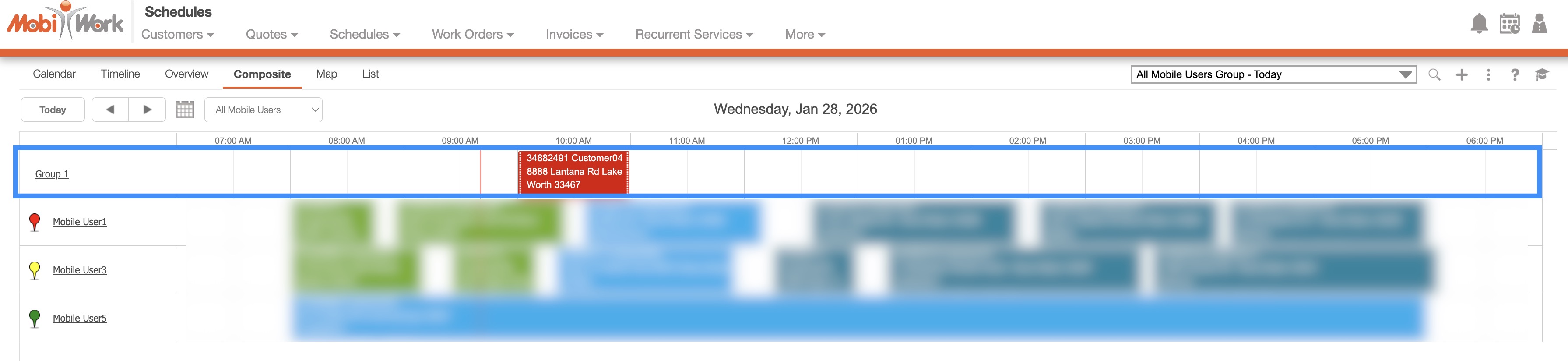
You will be able to see the users that compose the crew by hovering over the assigned work order or by looking at the "Scheduling & Dispatching" panel in the View Work Order pop-up window:

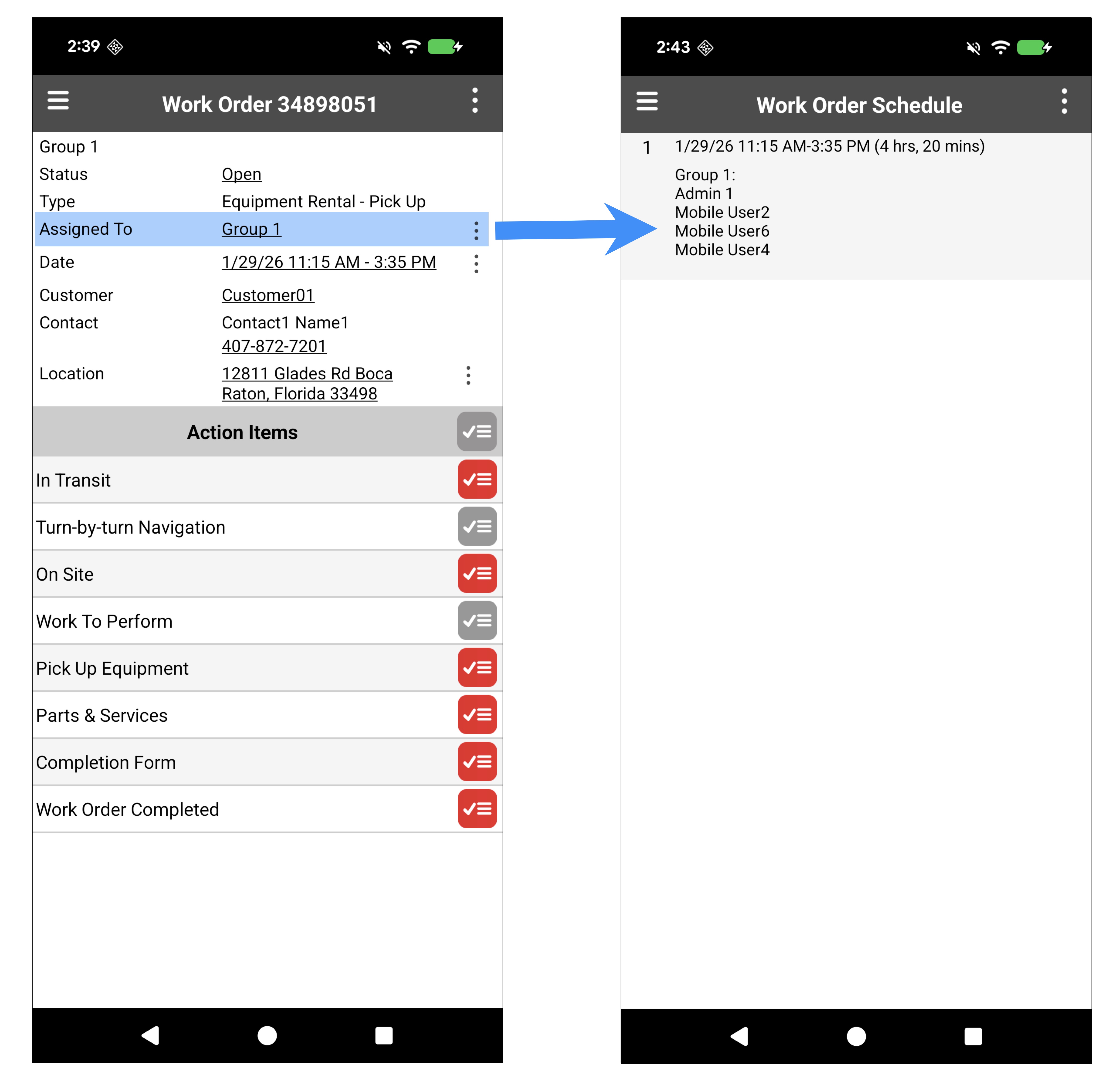
On the device, you can access the work order details, including the dispatched crew. By clicking on the Individual Actions button in the "Assigned To" field you will be able to view the crew members that are assigned to the specified work order: