

To include discounts on an invoice, you must first establish them within MobiWork. For detailed instructions on creating discounts, refer to the Invoices Settings page.
In the "Line Items" panel click on the Individual Actions in the top-right. From the drop-down menu that appears, select the "Add Discount" option. This discount option will allow you to add a discount to the entire invoice.
You will be able to add additional general discounts to choose from, from the Invoice Settings page. For more information on how to add or edit a general discount, please see the Invoice Settings page:
Once you click on the "Add Discount" option, the Apply Discount pop-up window will appear:
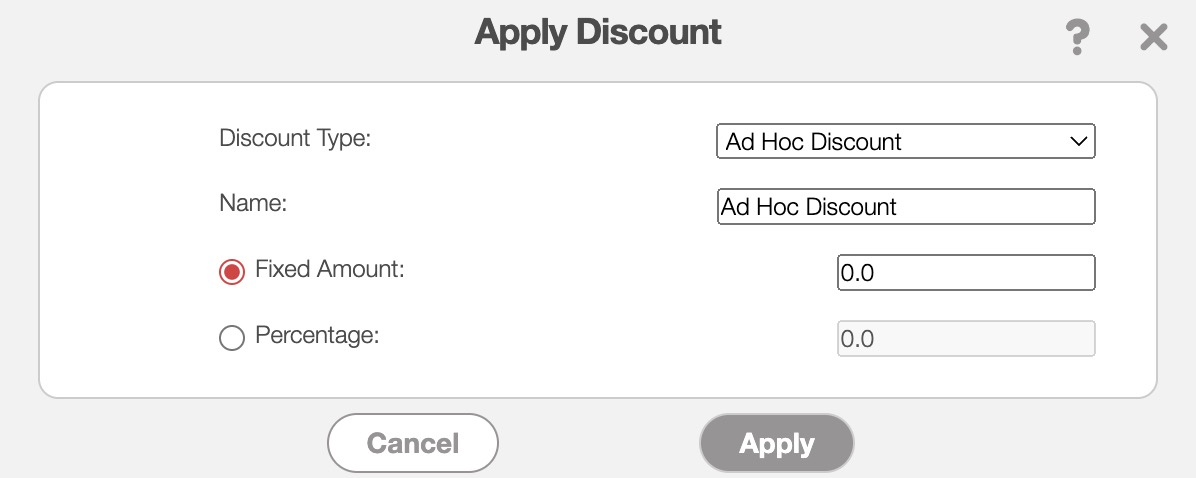
In this pop-up window select the type of discount you would like to apply. If the selected discount has predefined values for the fixed amount and percentage, these values will be automatically applied. If there are no predefined values for the selected discount, you can manually input the fixed amount and percentage.
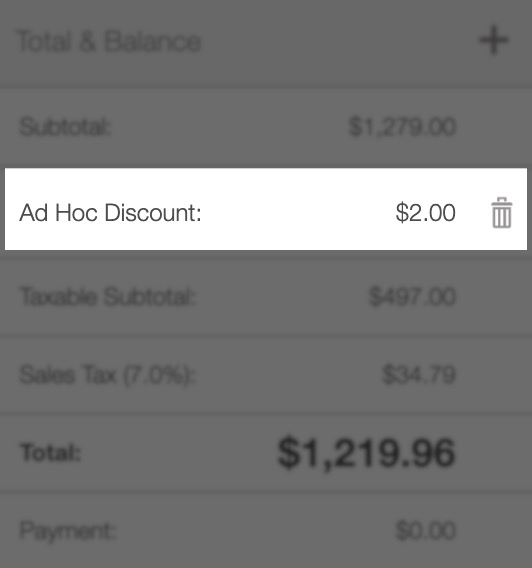
After applying this discount, you will be able to see it in the "Total & Balance" panel of your invoice:
If you decide to no longer apply the discount, you can select the Trash Can icon next to the discounted amount.
To include markups on an invoice, you must first establish them within MobiWork. For detailed instructions on creating markups, refer to the Invoices Settings page.
In the "Line Items" panel click on the Individual Actions in the top-right. From the drop-down menu that appears, select the "Add Markup" option.
You will be able to add additional markups to choose from, from the Invoice Settings page. For more information on how to add or edit a markup, please see the Invoice Settings page:

Once you click on the "Add Markup" option, the Add Markup pop-up window will appear:

In this pop-up window select the type of markup you would like to apply. If the selected markup has predefined values for the fixed amount and percentage, these values will be automatically applied. If there are no predefined values for the selected markup, you can manually input the fixed amount and percentage.
After applying this markup, you will be able to see it in the "Total & Balance" panel of your invoice:
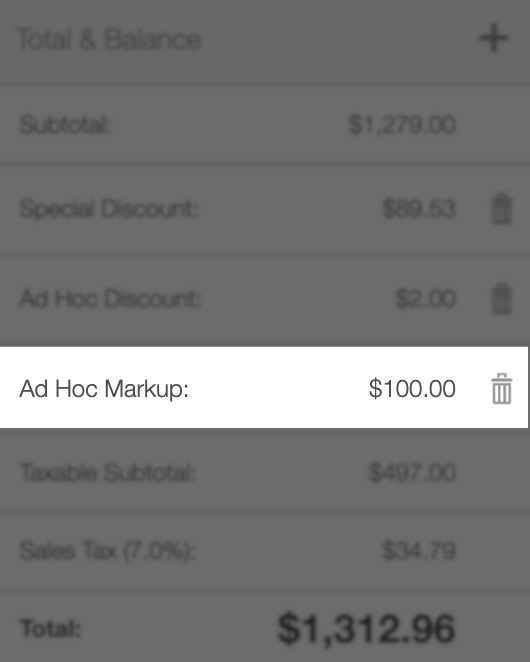
If you decide to no longer apply the markup, you can select the Trash Can icon next to the marked-up amount.
If you would like to ensure tighter control over pricing adjustments and prevent unauthorized changes to financial documents among your users, you can adjust their corresponding permissions template:
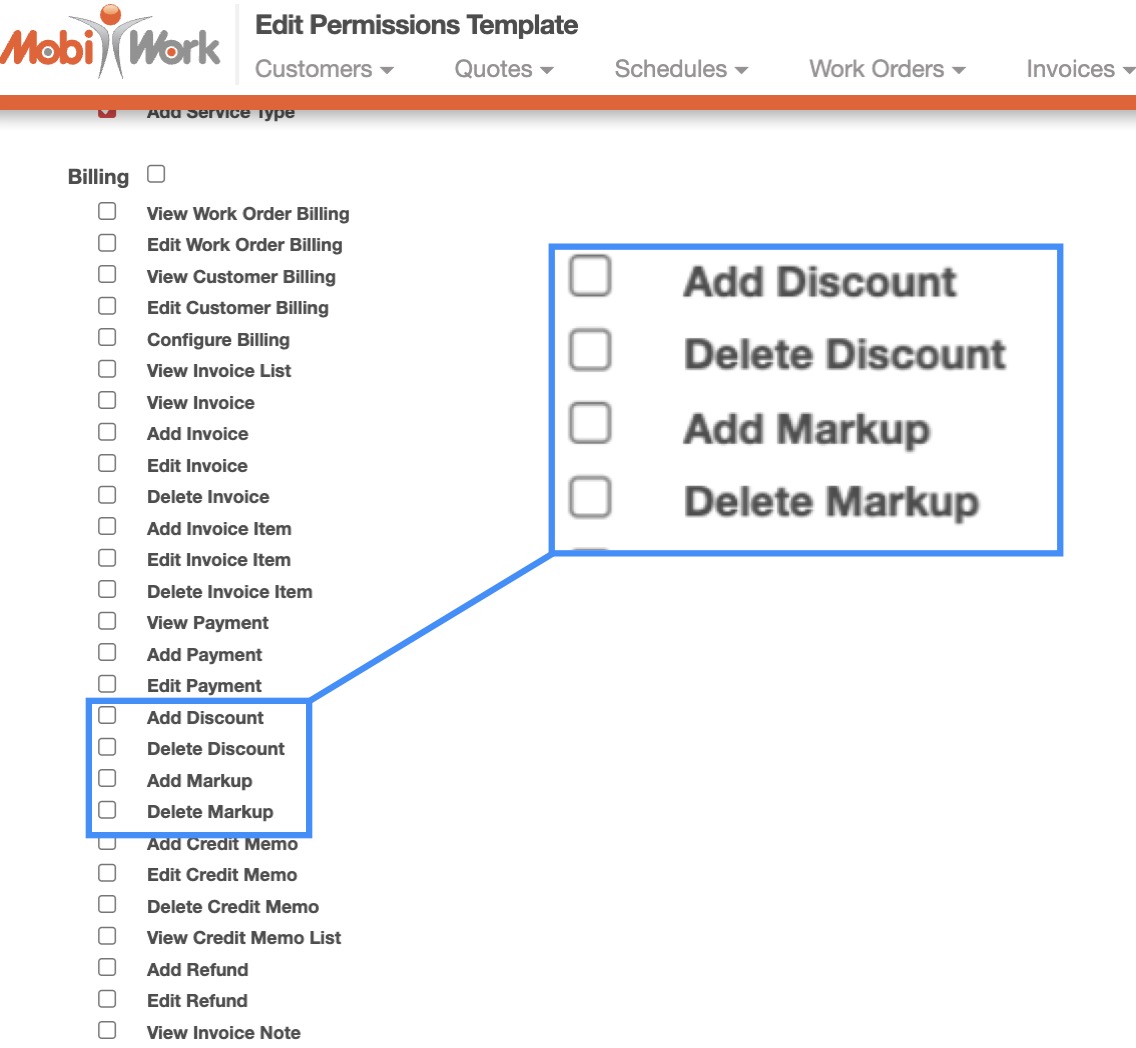
Within the permissions template, you can restrict user access to the invoice and quote "Discount" and "Markup" options.
By adjusting these permissions, users will no longer be able to add or remove discounts and markups on invoices or quotes. Please note these permissions also includes discounts and markups for individual parts and services when adding to to a quote or invoice.