
- Frequently Asked Questions (FAQ)
- Assets
- Branches
- Customers
- Overview
- Adding Customers
- Billing and Invoices
- Customer Arrangement and Terms
- Customer Fields
- Customer Status and Categories
- Delete or Disable Customers
- Delete or Disable Customer Contacts
- Manager Field
- Marketing and Sales
- Messaging Customers
- Sub-Customers
- View Customer Pop-up Window
- Customer Requests
- Customer Opt-In and Opt-Out
- Dashboards
- Devices
- Expenses
- Inbound REST API
- Inventory
- Overview
- Barcode Reader for Warehouse Inventory
- Barcode SKU
- Export Inventory
- Inventory Accounting
- Inventory Audits
- Inventory Movements
- Inventory and Parts
- Importing Product Inventory
- Remove Parts From Inventory
- Invoices
- Mailchimp
- Notifications
- Parts
- Payments
- Purchase Orders
- QuickBooks
- Quotes
- Recurrent Routes
- Recurrent Services
- Reminders
- Reports
- Review Us
- Sage
- Sales Tax
- Schedule and Dispatching
- Screen Recording
- Services
- Support Tickets
- Telematics
- Text Messaging
- Time Tracking
- Trial Account
- Troubleshooting
- User Settings
- Overview
- Account Settings
- Account Users
- Connectors
- Custom Fields
- Display User Device Location on Map
- Documents and Email
- Google and Outlook Integration
- Import and Export Excel Documents
- Max Session Idle Time for Users
- Permissions Template
- Saved Login and Session Management
- Saved Searches
- Single Sign-On (SSO)
- Updating the User Password
- User Locked Out
- User Preferences
- MobiWork Locations
- User Interface
- Work Orders

Whether recording a single day's payroll or reviewing multiple time entries, MobiWork ensures accurate tracking and smooth payroll coordination across your team. The Time Tracking for Payroll feature simplifies payroll management by allowing you to record, review, and update time entries directly from the web.
This section covers some commonly asked questions related to using the Time Tracking for Payroll feature.
MobiWork provides the ability to mark and track payroll daily instead of weekly. This feature is beneficial, as it allows managers to promptly approve and manage their users' time tracking instead of having to wait a week to approve it. To approve the daily time tracking for payroll, simply mark the desired entry as "Approved:"
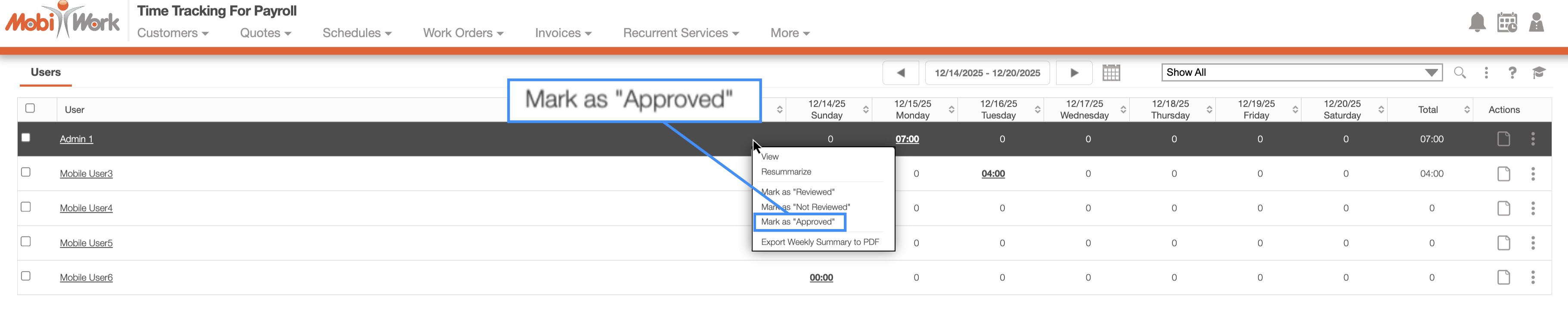
You can access this menu either by right-clicking on the selected entry or using the Individual Actions. You can also approve it directly from the Payroll Details pop-up window.
If you have any questions or need further assistance, please let us know. We'd be happy to help!