
This section will highlight some commonly asked questions regarding your SMS Portal connector.
To ensure that your text messages are sent, please confirm that the following criteria are met:
You must first have a Text Message Connector installed in your MobiWork Web Application. Please see the Adding a Text Message Connector for more information on how to add a text message connector to your MobiWork account.
The customer must have a cell phone number associated with their profile. For a new customer you can add the cell number directly onto their profile; please see the Add Customer. For an already existing customer, please see the Edit Customer(s) page for more information on how to edit their contact details:
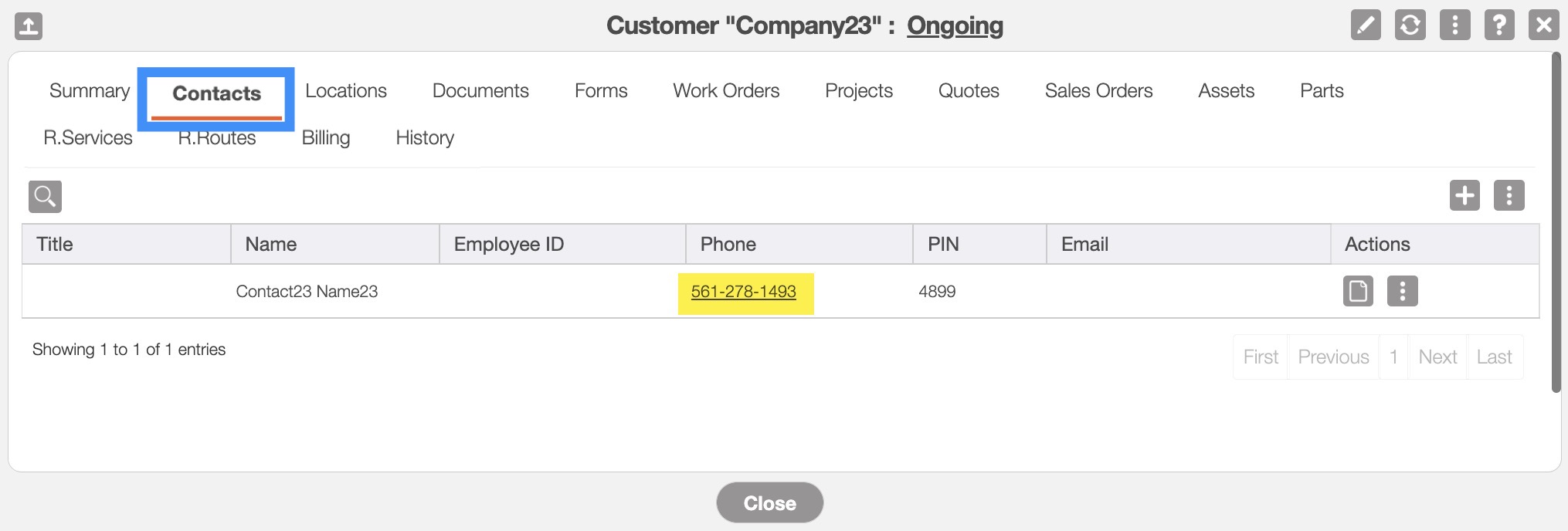
Note: Please note when adding or editing the contact's phone number, only input numerical characters (e.g., no letters, no dashes, etc.). Only use numbers when inputting the phone number, otherwise, errors will occur when you try to message the contact.
To locate your SMS Portal API Key, you will first need to access the SMS portal webpage. Once on this page you will be able to create a new API key.
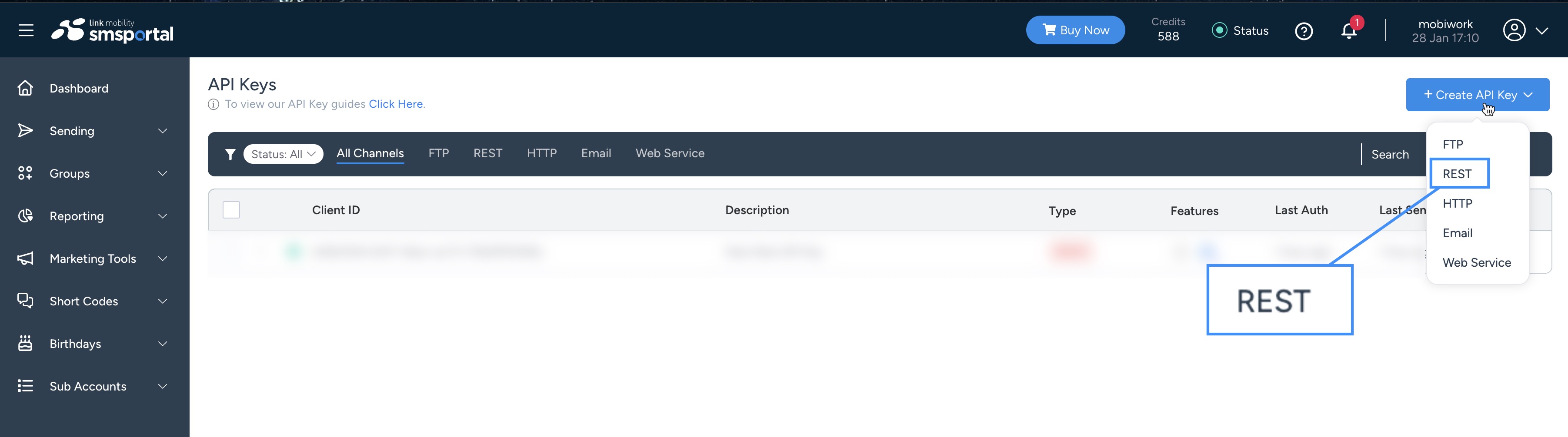
Click on the blue Create API Key button and from the drop-down select the "REST" option:
The Create API Key (REST) pop-up window will then appear:
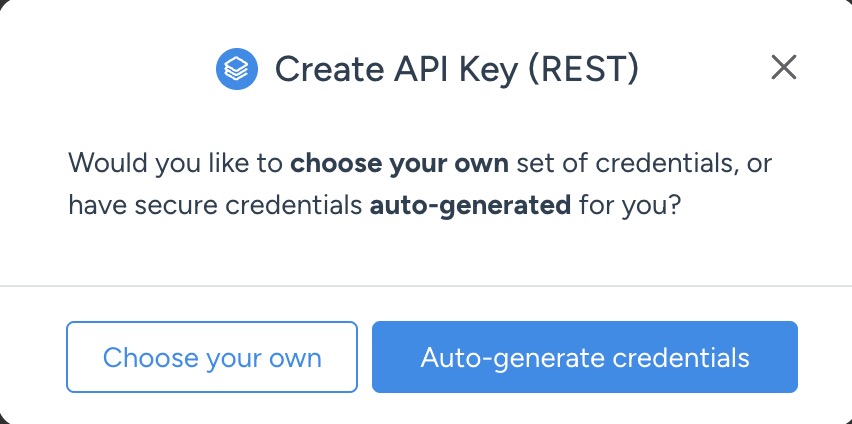
You can select the "Choose your own" or "Auto-generate credentials" option; we recommend selecting the latter.
Once generated, the client ID and secret key will be displayed. Be sure to store the secret key securely, as it cannot be retrieved again.
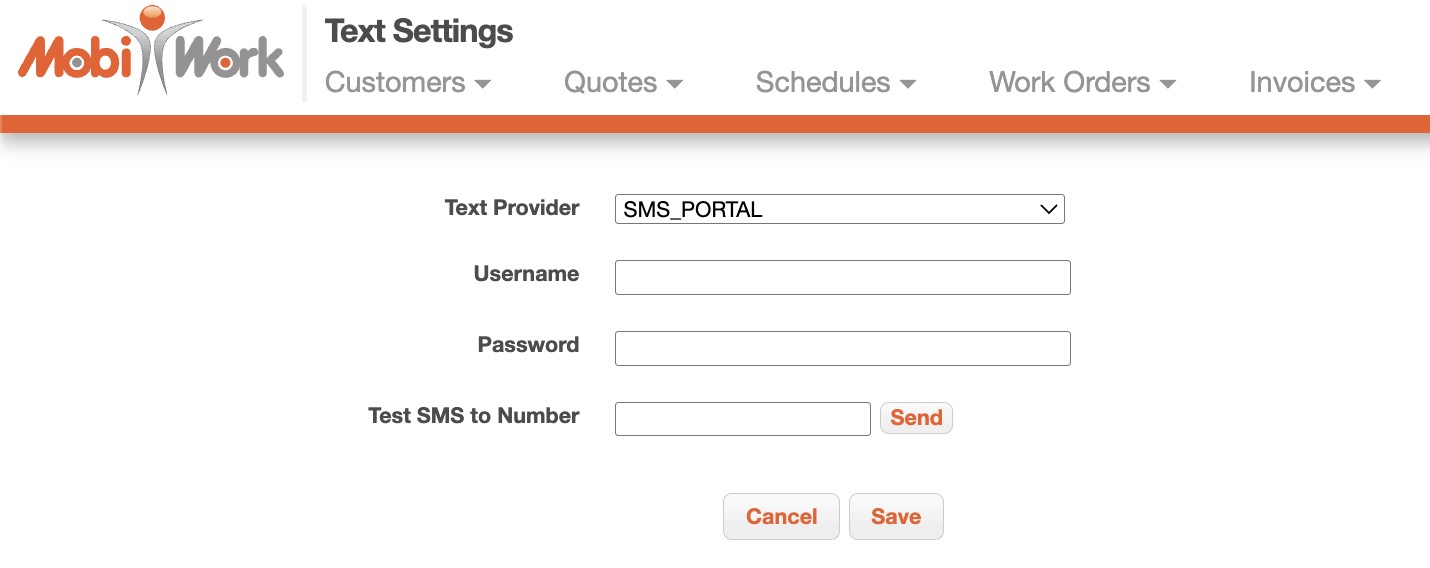
In MobiWork enter the client ID into the "Username" text field and the secret key into the "Password" text field. Then click the Save button: